Sunday, April 21, 2019

How to Block Facebook Websites on Personal Computer


The Influences of Facebook and the Need to Block Facebook Website

Despite the fact that Facebook helps users to get connected with their loved ones easily, people tend to abuse this privilege. Users become so addictive to it that they spend endless time over it and forget almost everything about the real world, be it their office work and responsibilities or their exams or homeworks etc. etc.

Eventually, sometimes it becomes vital to block Facebook website and other social networks at work places to remove distractions that hamper the productivity of the employees. Moreover, parents too sometimes get tensed as their kids getting exposed to social networks like Facebook at an early age that may, eventually, turn them into a victim of cyber bullying. Hence, it is the essential in such cases to block Facebook website and other social networks to protect your kids and loved ones.
How to Block Facebook on Windows Computer

Here in this section we're going to explore about how to block Facebook website on a Windows computer with the help of the 'Host' file. Please ensure to follow the steps carefully or else your windows OS may get corrupted. Here's what you need to do.


Hit the 'Windows + R' button on your keyboard to bring up the Run box and type in 'system32' in the text field available. Hit 'Enter' afterwards.


Next, get into the 'drivers' folder and look for 'hosts' file. You need to right click over the host file and select 'Notepad' option under the 'Open with' section.


You're now required to type "127.0.0.1 www.facebook.com" at the bottom of the file in the notepad window.


Lastly, save the file and reboot your PC. You're all sorted now.
Guide for Blocking Facebook Website on Mac

If you do now own a Windows PC, fret not. We're now going to explore the tutorial on how to block Facebook website on Mac computer.


Hit the 'Apple' icon on the top left corner and select 'System Preferences' option.


Now, get into the Parental Controls section and then select the User account over which you wish to block Facebook website. Hit the lock icon at the bottom and key in your password in order to make further changes to the settings.


Then you need to get under the 'Web' settings tab and select "Try to limit adult websites automatically".


Hit 'Customize' button now and tap the '+' icon under the 'Never allow these websites' section to add 'www.facebook.com' to the list of blocked websites. Save the settings and you're all sorted.


Block Facebook Website Using Browser

Well, here we bring you quick and hassle free ways to block Facebook website using your browsers itself, be it Google Chrome or Mozilla Firefox or it is Internet Explorer. Follow the steps listed below carefully.

Google Chrome:


Launch the Chrome browser and get into Advanced Settings. Then, select the 'Open proxy settings' option under the 'System' section.


From the upcoming window, get under 'Privacy' tab and hit on 'Sites'.


Punch in the URL of Facebook (www.facebook.com) in the field available and hit on 'Block'. Hit 'OK' afterwards.


Mozilla Firefox:


Launch the Firefox browser and choose the 'Settings/Options' from the top menu panel.


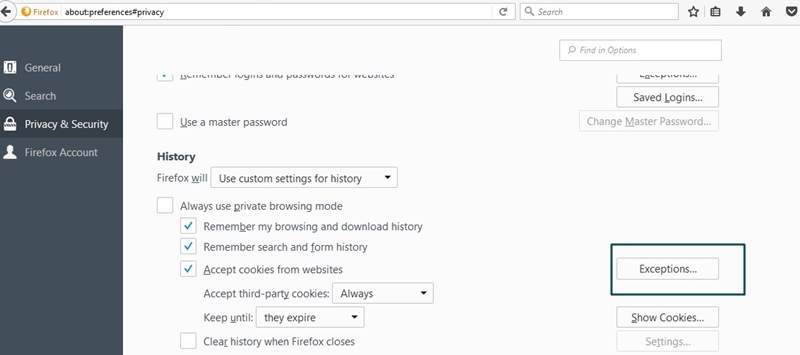
Now, get into the 'Privacy &; Security' tab from the left panel and then select 'Exceptions' button available under the 'History' section.Also Read:Top 25 Best Netflix Cookies for You to Use Netflix for Free 2019


Also Read:Top 10 iPhone Emulators for Windows PC, Mac and Android 2019


Also Read:Download Latest Samsung USB Drivers for Mobile Phones on Windows


Also Read:Download Korean Drama for Free 2019


Also Read:Websites Like PrimeWire


Also Read:KissAnime Alternative Websites


Next, you need to add the Facebook URL in the respective field to block it.

Internet Explorer:


Launch the browser and hit on 'Tools' then choose 'Internet Options'. From the upcoming window, you need to get under 'Content' section and tap on 'Enable' button below 'Content Advisor'.


Move under the Approved Sites section and enter the Facebook's website (www.facebook.com) then hit on 'Never'. That's about it.


Sponsor ads:
Gihosoft RePicvid Free Photo Recovery Software provides a free photo recovery software for windows to help users recover the deleted or lost photo for free.
If you lost data after you updated to a new iPhone, you can always use Gihosoft iPhone Data Recovery to get the data back from the old iPhone or backup.You may also like: iphonerecovery.com

Thursday, April 18, 2019

7 Common Ways - If Your iPhone Screen Keep Going Black

7 Common Ways - If Your iPhone Screen Keep Going Black

In this section, we will explain all the practical fixes to address “iPhone black screen” issue.

Way 1. Restart Your iPhone

Restarting is the most common method to fix various iOS related issues which works for many users.
For iPhone X or newer:
Step 1: Long press Side button and any Volume button to see the slider.
Step 2: Drag the slider so the device will turn off.
Step 3: Long press the Side button to turn on the device.
restart iphone x
For iPhone 8 or older:
Step 1: Long press the Top/Side button to see the slider.
Step 2: Drag the slider so the device will be turned off.
Step 3: Long press the Top/Side button once again to turn the device on.
restart iPhone8

Way 2. Update iPhone to Latest

You can upgrade your iPhone to the latest and resolve the black screen.
Step 1: Open Settings app and go to General.
Step 2: Select Software Update
Step 3: Tap on Download and Install if there is an update.
iphonex-check-for-updates

Way 3. Stop Using Problematic App

If the cause is a problematic app, you can solve it simply by stop using it.
Step 1: Double press the Home Button to see the app switcher.
Step 2: Go to the app you intend to stop.
Step 3: Simply swipe the app card up off the screen.
force-close-running-apps-iphone

Way 4. Change Your Screen Orientation

For some users, changing the screen orientation will do the trick.
Step 1: Go to Control Center and tap on the padlock icon to unlock it.
Step 2: Rotate the phone to change screen orientation.
Step 3: Tap on the padlock again to lock it.Worth Reading:Cheat Engine – Hacking Android Games without Root

Worth Reading:Best 5 Free Photo Editing Software for Windows 10 PC

change-ipad-screen-orientation

Way 5. Check Date & Time Settings

If the problem is persisting, just check if the date and time settings are correct.
Step 1: Go to Settings and select General.
Step 2: Go to Date & Time.
Step 3: Change the date and time automatically.
settings-date&time_

Way 6. Reset All Settings

In most of the cases, you can fix black screen issue by resetting all the settings.
Step 1: Go to Settings app and select General.
Step 2: Select Reset.
Step 3: Go to Reset All Settings.
reset-all-settings

Way 7. Disable Auto-Brightness

You can also disable auto-brightness feature of the device to solve this.
Step 1: Open Settings and select General.
Step 2: Go to Accessibility and select Display Accommodations.
Step 3: Disable Auto-Brightness feature.
auto-brightness

3 Advanced Ways - If Your iPhone Screen Keep Going Black

Gihosoft RePicvid Free Photo Recovery Software provides a free photo recovery software for windows to help users recover the deleted or lost photo for free.
If you lost data after you updated to a new iPhone, you can always use Gihosoft iPhone Data Recovery to get the data back from the old iPhone or backup.You may also like: iphonerecovery.com

Wednesday, April 3, 2019

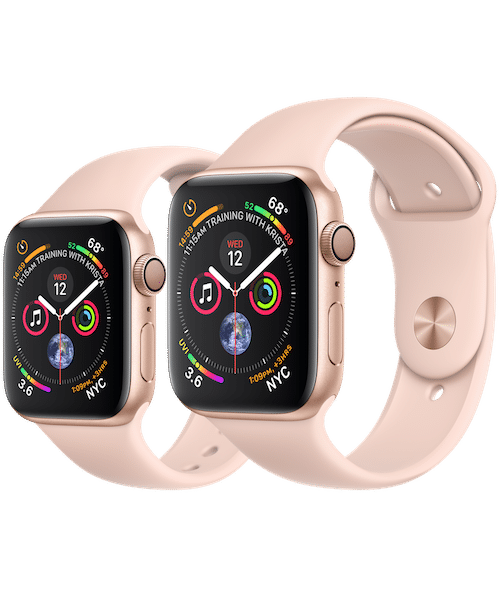
Apple Watch Series 5 to Feature OLED Panels from Japan Display


Apple will be sourcing OLED panels for the upcoming Apple Watch 5 from the struggling Japan Display. If the move goes ahead as planned, this would be the first time that Japan Display would supply OLED panels to Apple.

The company has been struggling to set up its OLED production facility which led to it losing out on orders from Apple. The increasing popularity of OLED panels among smartphone makers and the declining demand for LCD panels has not helped the company either.

Japan Display Inc will begin to supply organic light-emitting diode (OLED) screens for the Apple Watch later this year, two sources said, a breakthrough for the cash-strapped company whose late shift to OLED has cost it orders from Apple.

Japan Display already supplies Apple with LCD panels for the 2018 iPhone XR and it is expected to continue doing so for the 2019 iPhone XR as well.
Our Take

Apple has so far reportedly been sourcing OLED panels for the Apple Watch series from LG. For iPhones though, Apple has to stick to Samsung Display as other display makers like LG Display and BOE have simply been unable to scale up their OLEDproduction facilities.

BOE and LG Display have supplied OLED panels to other Android OEMs but have been unable to do so for Apple as their OLED panel quality is notably lower than that of Samsung. Apple is expected to switch entirely to OLED panels for its 2020 iPhone lineup and it remains to be seen if it will solely source OLED panels from Samsung or other suppliers would be able to ramp up their OLED production facilities by then.

[Via Reuters] Sponsor ads:

Gihosoft Free iPhone Data Recovery:https://www.gihosoft.com/iphone-data-recovery-free.html

Gihosoft iPhone Data Recovery Free

Free iPhone Data Recovery Software for Windows/Mac

Recover up to 12+ types of files, including contacts, SMS, photos, WhatsApp, Viber, notes, etc.

Restore lost data from iOS devices directly or from iTunes and iCloud backup

Recover iPhone data lost due to iOS upgrade/jailbreak, accidental deletion, device lost or broken

Support all the latest iPhone, iPad and iPod Touch

Both Free and Pro version.

If you lost data after you updated to a new iPhone, you can always use Gihosoft iPhone Data Recovery to get the data back from the old iPhone or backup.You may also like: iphonerecovery.com

If you use android phones, please choose Gihosoft Android Data Recovery.

With Gihosoft Android Data Recovery, no longer afraid of data loss!

Must read:Youtube video downloader for pc

Gihosoft RePicvid Free Photo Recovery Software provides a free photo recovery software for windows to help users recover the deleted or lost photo for free.

Jihosoft Android Data Recovery: the best Android Data Recovery software for Windows and Mac to recover deleted contacts, messages, photos, videos, WhatsApp and etc from Android devices.Tips:How to transfer messages from iPhone to iPhone

Jihosoft File Recovery:Recover deleted, Lost, formatted, or corrupted files from PC, flash drive and memory card easily & safely

Also Read:Update Android

Also Read:Top 8 Best Alternative Websites to TamilGun in 2019

Also Read:Free Download FRP Bypass APK for Android 2019

Also Read:Best 10 Movie4k Alternative Websites for Movie Streaming 2019

Also Read:Top 32 Best Proxy and Mirror Sites to Unblock Fmovies 2019

Also Read:Best Torrent Search Engine Sites to Find Your Favorite Torrents 2019

Also Read:5 Best Sites Serving as Alternatives to TheWatchSeries Online 2019


Monday, April 1, 2019

Apple Reduces iPhones, iPads, AirPods, and Mac Prices in China Following VAT Cut


Following a VAT reduction by the Chinese government from 16 to 13 percent, Apple has gone ahead and reduced iPhone, iPad, Macs, and AirPods prices in China. The reduction in prices are extremely modest in nature, though Apple’s reduction is bigger than the 3 percent VAT reduction done by the Chinese government.

Apple took down its online store in China for a few hours yesterday to list the new prices.

Post the price cut, the iPhone XR is available for 6199 RMB in China — down from its original price of 6499 RMB and a reduction of 300 RMB. The iPhone XS and iPhone XS Max see a bigger reduction of 500 RMB and are now available for 8,199 RMB and 9,099 RMB. The recently launched 2nd generation AirPods have also seen their price reduce by 33 RMB to 1,246. Other Apple products have also seen a similar price cut. Again, the price cuts are not hefty and most customers are likely to find better deals with other online retailers in China.

If you brought an Apple product in China in the last 14 days, you can contact Apple Support and get a refund of the excess money you paid.

The reason behind the VAT reduction from the Chinese government is to boost the slowdown in the economy.
Our Take

This price reduction from Apple is unlikely to have any notable effect on iPhone sales in the region. Given the slowdown in iPhone sales in China which led the company to lower its revenue by $15 billion in Q4 2018, Apple was expected to announce a major price cut for its products in the region. However, that did not happen despite Apple rethinking Apple pricing in some international markets due to price fluctuations.

[Via CNBC]

Also Read:jihosoft Free iPhone Data Recovery

Sponsor ads:

Gihosoft Free iPhone Data Recovery:https://www.gihosoft.com/iphone-data-recovery-free.html

Gihosoft iPhone Data Recovery Free

Free iPhone Data Recovery Software for Windows/Mac

Recover up to 12+ types of files, including contacts, SMS, photos, WhatsApp, Viber, notes, etc.

Restore lost data from iOS devices directly or from iTunes and iCloud backup

Recover iPhone data lost due to iOS upgrade/jailbreak, accidental deletion, device lost or broken

Support all the latest iPhone, iPad and iPod Touch

Both Free and Pro version.

If you lost data after you updated to a new iPhone, you can always use Gihosoft iPhone Data Recovery to get the data back from the old iPhone or backup.You may also like: iphonerecovery.com

Also Read:Update Android

Also Read:Top 8 Best Alternative Websites to TamilGun in 2019

Also Read:Free Download FRP Bypass APK for Android 2019

Also Read:Best 10 Movie4k Alternative Websites for Movie Streaming 2019

Also Read:Top 32 Best Proxy and Mirror Sites to Unblock Fmovies 2019

Also Read:Best Torrent Search Engine Sites to Find Your Favorite Torrents 2019

Thursday, March 28, 2019

How to Download Apps over 150MB without WiFi on iPhone


It is true that Apple App Store offers a variety of apps to be downloaded and installed on your device. However, there is a restriction (in terms of file size) when you download a file using cellular data.

For instance, you cannot download files larger than 150 MB if you are connected through cellular data if you use iOS 12 (this was limited to 100 MB in iOS 10).

But what if you want to download apps beyond this weight? Well, the purpose of this article is to explain how to download apps over 150MB without WiFi on iPhone.


The Reason Why You Can’t Download Apps over 150MB without WiFi on iPhone

Before we learn how to solve this issue on iPhone, let’s find out the actual reason behind this.Also Read rarbg proxy

In fact, such restriction is introduced to prevent you from using excessive amount of cellular data.

However, if you have enough cellular data and need download heavy apps without WiFi, the rest of this article will help you.


How to Download Apps over 150MB without WiFi on iPhone in iOS 12/11


Tip. How to Download App Data from iPhone
Download Apps over 150MB without WiFi in iOS 12/11

Here we will explain how to download apps over 150MB without WiFi on iPhone. Please follow the steps carefully so you can succeed conveniently.

Step 1. Launch App Store and locate the app you need to download on the device. Tap on the option “GET”. You will now have to confirm the action with authentication (Password, Face ID or Touch ID).

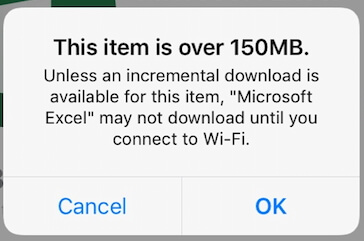
Step 2. You will see the notification saying “This item is over 150MB”. It will suggest you connect the device into a WiFi network to complete the process. Just tap on “OK” and go to the Home Screen. The app icon will be there on the Home Screen. It will be there until the device is connected to WiFi.

Step 3. Now go to Settings app and choose General.

Step 4. Go to Date & Time and switch off the option “Set Automatically”.

Step 5. Change the date into a future date (1 or 2 days would be fine). Wait for a while so the download will be started. Be patient until the downloading process gets completed. At the completion, simply launch the app and start it.

Step 6. After getting the app downloaded into the device, you should change the device’s date and time back to the correct figures.

Step 7. Go to “Settings” -> select “General” -> go to “Date & Time” and then switch off “Set Automatically”.


Note: Download Apps over 100MB without WiFi on iPhone in iOS 10 and Earlier

If you are using an iOS 10 or an older version, you cannot download an app if it exceeds the size of 100MB. Well, if you wonder how to download apps over 100MB without WiFi, here’s how to do it.

Step 1. Before beginning to download the app, enable Cellular data on your device. Launch the App Store on the device and head towards the app you intend to download.

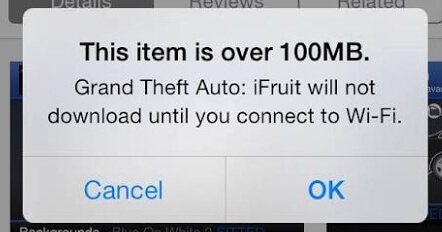
Step 2. Then, you will see an error message: just tap “OK” and don’t worry about it.

Step 3. You should put your device on Airplane mode now (slide the control center and simply tap the Airplane icon).

Step 4. Restart the iOS device and then go to App Store once again.

Step 5. Now, you can turn off the Airplane mode once the device is restarted. You can then resume the download by going to “Updates” and “Purchased” located in “App Store”.Also Read:jihosoft Free iPhone Data Recovery

Sponsor ads:

Gihosoft Free iPhone Data Recovery:https://www.gihosoft.com/iphone-data-recovery-free.html

Gihosoft iPhone Data Recovery Free

Free iPhone Data Recovery Software for Windows/Mac

Recover up to 12+ types of files, including contacts, SMS, photos, WhatsApp, Viber, notes, etc.

Restore lost data from iOS devices directly or from iTunes and iCloud backup

Recover iPhone data lost due to iOS upgrade/jailbreak, accidental deletion, device lost or broken

Support all the latest iPhone, iPad and iPod Touch

Both Free and Pro version.

If you lost data after you updated to a new iPhone, you can always use Gihosoft iPhone Data Recovery to get the data back from the old iPhone or backup.You may also like: iphonerecovery.com

Also Read:Update Android

Also Read:Top 8 Best Alternative Websites to TamilGun in 2019

Also Read:Free Download FRP Bypass APK for Android 2019

Also Read:Best 10 Movie4k Alternative Websites for Movie Streaming 2019


Tip. How to Download App Data from iPhone

How to Hack Android Games Without Root (3 Working Hacks) 2019

How to Hack Android Games Without Root (3 Working Hacks) 2019


Cheating or hacking a video game has always been an issue no matter how good the game is. Developers have taken numerous steps to prevent any forms of cheating in their games. Regardless if its a game for PC, Console, or Mobile.


When it comes to mobile games, cheating or hacking is more prominent compared to other platforms. You can even find various methods and ways to perform certain hacks in a game with a simple Google search. The most popular way of hacking any kind of Android game is by means of rooting, however, you’re here because you want an easier way to do it without the need to root your smartphone. If you answered yes, then you’re in luck.


In this article, we will teach you various ways to hack an Android game without rooting.


Also Read: 10 Best Free WiFi Password Hacker Apps for Android without Root


How to Hack Any Game on Android without Root

There are various ways to hack an Android game of your choice, however, not all would work for you. In most cases, the most effective way to cheat or hack an Android game is by means of rooting your Android smartphone. Unfortunately, rooting is not a saint haven. Rooting comes with certain risk and those risk includes permanently rendering your phone useless or simply “Brick” your phone.

So, here are a few methods that we verified and confirmed that is working for hacking any Android game.


1.Hacking Time Based Games with Device Time Exploit


Also Read: How to Get Free in App Purchases on Android – No Root Required


The first and easiest way of hacking an Android game is by taking advantage of device exploit. This hack doesn’t work on every game and it will mostly work on Android games that are offline and are time-based. Meaning, those games that make you wait for a few hours to get something like a heart or energy to play the game.


To hack an Android game with device exploit, all you have to do is:


Make sure that the game that you want to hack is a game that uses the time to regenerate in-game resources like heart, energy, research, building infrastructure, etc.


Make sure that this specific game is not online based or server based like Clash of Clans for example.


Launch the game that you want to hack. Play for a few minutes and consume the time-based resources.


Do not close the app, instead, hover out the app by pressing the home button of your device.


Proceed to the clock settings of your device and search for “Date and Time.”


Move the date by 1 day ahead.


Go back to the game and observe if you regained some of the resources. If you do, then this exploit is working for your specific game. The image below shows that the time exploits hack worked for this game. We instantly got the daily gift of free cars for this game.

Note:


This TIME Exploit hack only works with games that are time-based and doesn’t require any online authentication such as logging in, Google play account, etc.


Also Read: 5 Top Best Games Hacking Apps For Android with/without Root


2. Hacking Android Fast Clicker Based Games with Auto Clicker


Another type of hack or exploit that you can do easily without rooting your Android phone is utilizing auto clicker apps. Auto clicker apps are already available on the Google Play store so you can easily find and download one.



Auto clicker hack is not a kind of hack that will work perfectly on every game. It is mostly intended for Android games that requires tapping the device screen as fast as you can as its main game interaction.

Our most recommended auto clicker app that you can download from the Google Play store is the “Automatic Clicker” by SimpleHat Software, LLC.
Automatic Clicker – by SimpleHat Software, LLC.



Automatic Clicker App

The “Automatic Clicker” app will reliably click any location of your choice on your screen at a customizable interval. It does NOT require root and it works on full-screen as well.


Also Read: How to Fix Delayed Notification Problem on Any Android Phone

Chuwiには、カスタマイズされたラップトップ、タブレットPC、妥協のない品質、安定性、サポート、パフォーマンスを備えたミニノート pcエクスペリエンスの世界有数のテクノロジーパートナーになることをミッションがあります。


To hack an Android game with auto clicker apps, all you have to do is:


Make sure that the game you want to hack uses tapping on the screen as its main game interaction.


Download an auto clicker app on the Google Play store.


Launch the auto clicker app of your choice and configure it to your preference.


Once you’ve fully configured the auto clicker app that you downloaded, proceed to launch the game that you wanted to hack.


Tap on the screen and let the auto clicker app do its job.

Note:


There are various auto clicker apps available. If you don’t know what to get, we highly recommend checking out our best auto clicker app article.
Hack Android Games with Lucky Patcher


Lucky Patcher Logo

The Lucky Patcher app is probably the best app to go to if you want to hack an Android game successfully without rooting your phone.

The success rate of Lucky Patcher depends on the game itself. Mostly, it is highly to succeed with offline games that don’t require any online verification or logging in. For online games, the success rate is quite low and it won’t work for online games that are highly secured and developed by the developers such as Clash of Clans, Arena of Valor, and other online/server functioning based games.

To hack an Android game with Lucky Patcher, all you have to do is:


Download the Lucky Patcher app from the official website. (It’s not available on the Google Play store)


Install the Lucky Patcher app. (Make sure installing from unknown source is enabled)


Once installed, launch the Lucky Patcher app.


Ignore all the modal popup messages and tap NO.


Find the game that you want to hack. (In this step, make sure that the game that you want to hack is already installed)


Lucky Patcher App List

Tap on the game that you want to hack and tap on “Menu of Patches.”Also Read:jihosoft Free iPhone Data Recovery

Sponsor ads:

Gihosoft Free iPhone Data Recovery:https://www.gihosoft.com/iphone-data-recovery-free.html

Gihosoft iPhone Data Recovery Free

Free iPhone Data Recovery Software for Windows/Mac

Recover up to 12+ types of files, including contacts, SMS, photos, WhatsApp, Viber, notes, etc.

Restore lost data from iOS devices directly or from iTunes and iCloud backup

Recover iPhone data lost due to iOS upgrade/jailbreak, accidental deletion, device lost or broken

Support all the latest iPhone, iPad and iPod Touch

Both Free and Pro version.

If you lost data after you updated to a new iPhone, you can always use Gihosoft iPhone Data Recovery to get the data back from the old iPhone or backup.You may also like: iphonerecovery.com

Also Read:Update Android

Also Read:Top 8 Best Alternative Websites to TamilGun in 2019

Also Read:Free Download FRP Bypass APK for Android 2019

Also Read:Best 10 Movie4k Alternative Websites for Movie Streaming 2019


Also Read: 8 Best Free Android Data Recovery Software to Restore Deleted Files


Modified APK Option

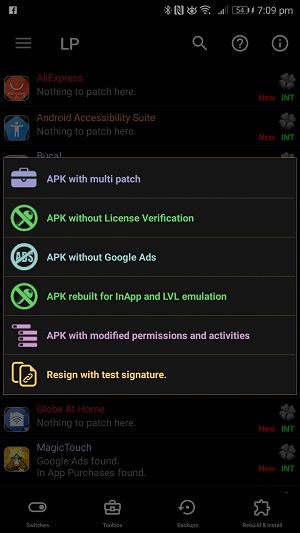
Tap “Create Modified APK File.” In this part, you will be presented with various methods of hacking. You can either modify the game that you want to hack with:

multi patch,

remove license verification,

remove Google Ads,

rebuilt the APK for InApp and LVL Emulation,

modify the APK permissions and activities,

and/or resign with test signature.

For the in-game resources hack such as gems, coins, etc… Select “Rebuilt APK for InApp and LVL Emulation. You will then be presented with 3 different choices, ignore the 3rd choice and pick between “InApp Emulation” or “LVL Emulation” or both. For this method, pick the “InApp Emulation” for now.


Also Read: How to Recover Lost Data, Photos, Contacts from Android after Factory Reset


APK Emulation Rebuild

Tap “Rebuild the App” then wait for a couple of minutes.
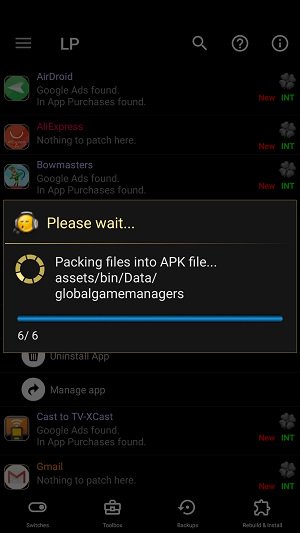


Lucky Patcher APK Rebuild

If the Luck Patcher app is done with the APK rebuild, uninstall the original game.

Proceed to your local storage path via File Manager. Look for Android Folder and tap on it.

Tap search and type “LuckyPatcher.”


Phone File Finder LuckyPatcher Folder

Tap the LuckyPatcher Folder then tap on “Modified.”
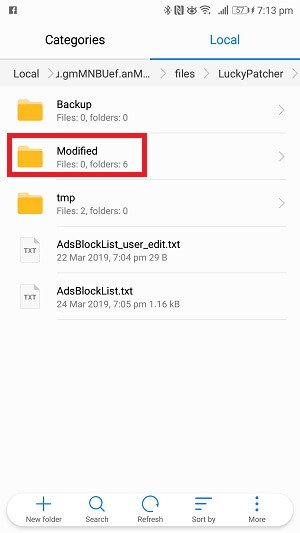


Lucky Patcher Modified APK Folder

Look for the folder that has the name of the game that you just recently hacked and tap on it to open the folder.

Inside the folder, you will find the rebuild APK of the game you just hacked. Tap on it and install it.

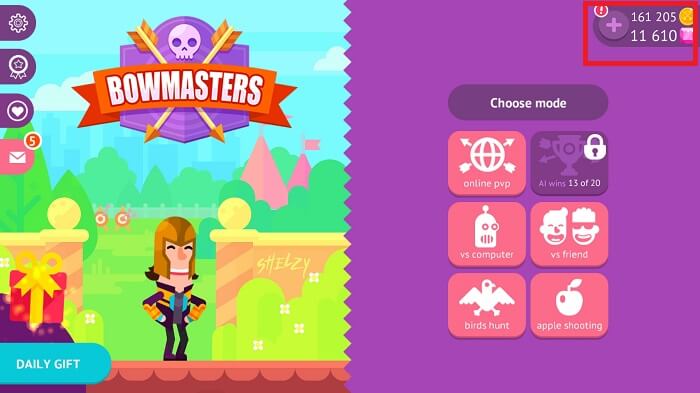
Once installed, launch the game and verify if the hack worked.


Lost data from your Android phone? Let Gihosoft Free Android Data Recovery Software help you get them back!

Bow Master Lucky Patcher Hack

Note:

Lucky Patcher tends to work with offline based games.

Lucky Patcher has a low chance of success with online based games.

The Lucky Patcher app is not a perfect hacking tool. It doesn’t work on every Android games.

The Lucky Patcher app can already pre-determine if an Android game is hackable or not. Take note of the name of the app under the APK list inside the Lucky Patcher app. If the name of the app is colored red, that means the game is not hackable. If it’s colored green, the success rate of hacking that Android game is high.

Useful tips for Android users:


How to Completely Format Android Phone Memory and SD Card


How to Access and Unlock Android Phone with Broken Screen

How to Enable Android Developer Options and Its 12+ Benefits


Wednesday, March 27, 2019

The Best Apps for 2019 iPad Air and iPad mini 5


If you’ve just bought the brand new iPad Air or the iPad mini 5, the first thing you’ll want to do is load it up with apps. The new iPads have the best qualities of both the standard iPad and the iPad Pro (both support the Apple Pencil). That makes them a great machine for both content consumption and content creation. So we’ve gathered up the best iPad apps that will let you enjoy content in the best possible way, and also enable you to be productive on the go. Check out our list of the best apps for 2019 iPad Air and iPad mini 5.
The Best Apps for 2019 iPad Air and iPad mini 5 Also Read rarbg proxy
1. Procreate

If you’ve bought the iPad along with the Apple Pencil, you should spend 10 dollars more on Procreate. It’s an app that’s designed for professionals but anyone can use it. Just doodle around for a while and you’ll start to get a hang of it. Follow the tutorials on YouTube and you can learn illustration, drawing and even calligraphy in the app itself.

Download: Procreate ($9.99)
2. Pixelmator

Pixelmator is a $5 image editing and manipulation app. It has components of a graphic design app built-in. But what Pixelmator is famous for is image editing. You get a versatile toolset for editing images, similar to what you see in Photoshop. But they’re fast and easy to use.
Download: Pixelmator ($4.99)
3. LumaFusion

LumaFusion is the only professional video editing app on the iPad and really, it’s more than what most users need. You can do 4K live editing, along with multi-track editing for both video and audio. The standard features of transition effects, text slides, background music, and export presets are all available.

Download: LumaFusion ($19.99)
4. Affinity Photo

Affinity Photo is a feature-rich photo editor on the iPad. It’s like Photoshop but designed from the group up for the touch screen. You get access to unlimited layers, customizable brushes and a lot more.

Download: Affinity Photo ($19.99)
5. Affinity Designer

Affinity Designer is the vector design app for the iPad. It’s the equivalent to Illustrator. The professional illustration app is all you need for designing posters, brochures and more. The app makes it easy to design in vector format, convert it to raster and export your designs in vector or image format.

Download: Affinity Designer ($19.99)
6. iCab Mobile


iCab Mobile is the browser designed for professional users. It’s the only iPad browser that supports extensions. They’re called modules and while only a couple of dozen modules are available, they negate the need of visiting multiple websites. Plus, it has a much better tab management feature and comes with a stellar dark mode (that works on websites as well as the UI).

Download: iCab Mobile ($1.99)
7. Anntotable


Annotable is the best all-in-one annotation app for the iPad. In this app, you can mark up images, add text, magnify parts of the image, blur images and more.

Download: Annotable (Free)
8. Good Notes 5

Good Notes 5 has been recently redesigned and modernized for the new iPad. It is now the ultimate notetaking app for the iPad. It fixes the major issues that Good Notes 4 had. You can now take continuous scrolling notes using Good Notes, making it much easier to use. You can annotate text, export as PDF or image, doodle and draw and a lot more.

Download: Good Notes 5 ($7.99)
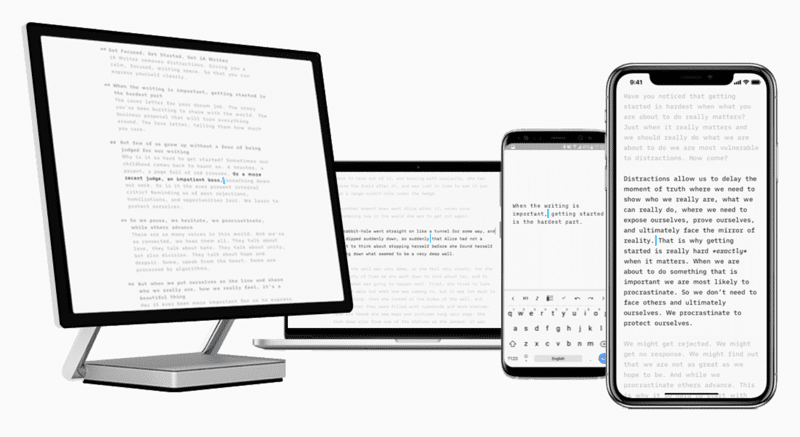
9. iA Writer


iA Writer is the most polished Markdown writing environment on the iPad. The dark theme looks especially gorgeous. The app is minimal, without any formatting bar in the UI. Though, you’ll see formatting options above the keyboard. You can sync documents using Dropbox or iCloud Drive.

Download: iA Writer ($8.99)
10. Shortcuts

Shortcuts is Apple’s own user automation app for iOS 12. The new iPads are mighty powerful. But the iOS software still keeps the hardware down. Using Shortcuts, you can create some automation workflows that will help you do things that apps in the App Store just won’t. You can do some really cool things just by importing Shortcuts made by the community. If you want to get your hands dirty, you can start creating your own Shortcuts as well.

Download: Shortcuts (Free)
11. Microsoft Outlook


Surprisingly, Microsoft’s Outlook makes for one of the best email apps for the iPad. The app is thoughtfully designed and has features that help users who are overwhelmed by an overloaded Inbox. For example, you have a priority inbox, swipe gestures, integration with calendar and files. One of the coolest features is the compose box it as at the bottom of each email. You can just tap on it and start creating a response like you’re replying to a message in IM. This helps email seem less of a taxing job.

Download: Microsoft Outlook (Free)
12. Edison Mail

If you don’t want to use Microsoft Outlook, Edison Email is a good option. It’s currently the best email app on the iPhone and iPad. It’s a smart email app that’s also customizable. You can customize every part of the app. You can toggle the email accounts and labels and sections you want to view. The smart part of Edison shows email in smart views – things like attachments, shipping, and more data is visually presented. And it has a lot of swipe gestures too.

Download: Edison Mail (Free)
13. LiquidText

LiquidText soles one of the biggest headaches of dealing with PDFs on the iPad. It lets you easily highlight, comment and annotate on any PDF file. This is a god sent for students and editors alike.

Download: LiquidText (Free)
14. PCalc Lite


The iPad doesn’t have a calculator app. There are many calculator apps on the App Store but PCalc is the one you should install. The free version is powerful, comes with a widget and is ad-free. And you can use in-app purchases to add features like themes, conversions and more.

Download: Pcalc Lite (Free)
15. Paper


Paper was one of the first drawing apps on the iPad and it’s still a great option for casual use. It’s awesome for doodling, drawing and for mind mapping.

Download: Paper (Free)
16. Evernote

Evernote was abandoned for the last couple of years but the recent redesign has brought it back into the limelight. The app is as feature-rich as ever – with support for notebooks, nesting, tags and more. Now it even supports Siri Shortcuts. If you’re looking for something better than Apple Notes, take a look at Evernote.

Download: Evernote (Free)
17. PDF Expert

PDF Expert is the only PDF manager and reader you’ll need on the iPad. In fact, it’s a better experience using PDF Export on iPad than using Adobe’s PDF apps on the Mac. You can open any PDF in the app, edit it and update it. Even if it wasn’t designed to be edited. The app also makes it easy for filling up PDF forms and signing them.

Download: PDF Expert ($9.99)
18. MyScript Calculator

MyScript Calculator answers the question every 12-year old has. Why can’t I just solve my equations by writing them? With MyScript Calculator, you can make complex calculations simply by writing them on the iPad screen.

Download: MyScript Calculator ($2.99)
19. ComiXology


The 10.5 inch iPad Air screen is awesome for reading and watching movies. Because the screen is so vibrant, it also makes for a great comic book reading experience. Using ComiXology, start a subscription and you can read hundreds of awesome comics right on your iPad, without having to buy individual issues.

Download: ComiXology (Free)
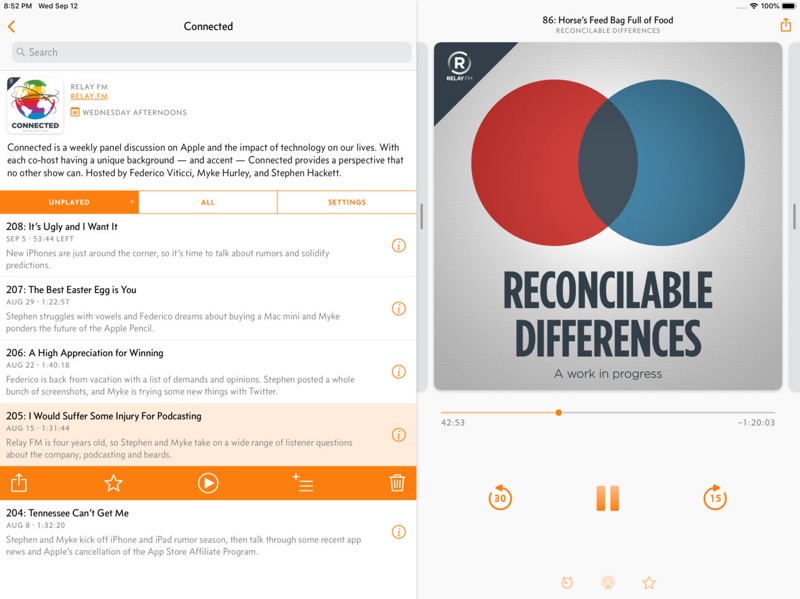
20. Overcast


Overcast is the best podcast player on the iPhone. And if you’re going to listen to podcasts on the iPad, it’s best to use Overcast. You get the same easy to use interface, Smart Speed, Voice Boost and custom playlist controls.

Download: Overcast (Free)
21. 1Password

iOS 12 has a good password manager built-in. But if you’re looking for something more secure, try 1Password. You can store password locally, in your own cloud account or on 1Password’s servers. Best thing is that now iOS 12 lets you autofill passwords from third-party clients as well. So you can easily log in to all your apps and services without saving any details on your iCloud account.

Download: 1Password (Free)
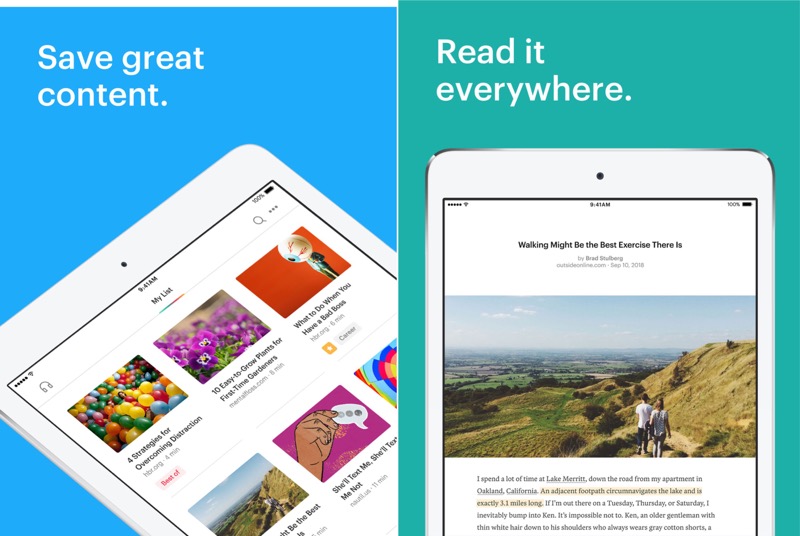
22. Pocket


Pocket is the best way to save articles for reading later. Share an article from anywhere to the Pocket app and it will save the text and images offline. The reading environment is much better, without any distractions or ads.

Download: Pocket (Free)
23. Netflix


Netflix is awesome to watch on the iPad Air and iPad mini 5. Because it’s so lightweight, with an awesome screen and speakers. It’s a must have for all iPad users.

Download: Netflix (Free)
24. Kindle


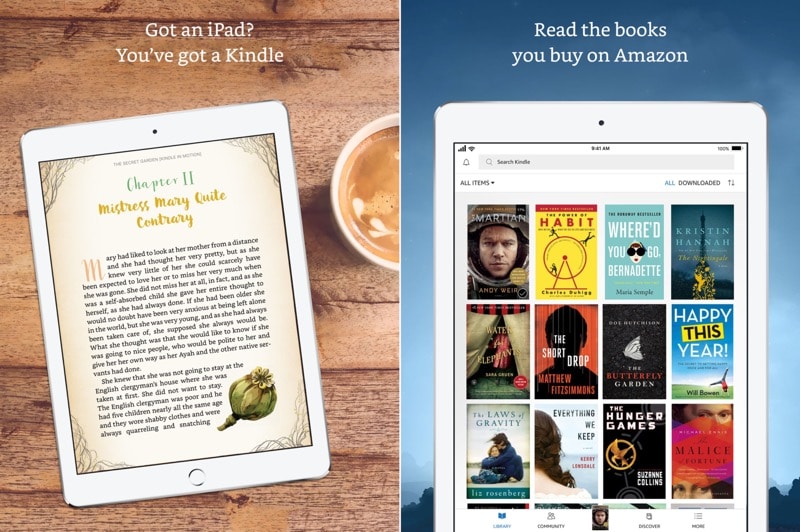
Apple Books is a good app but it’s a closed platform and the prices aren’t that great either. Kindle is the best ebook reading platform and once you buy a book on Kindle, you can read it on the Kindle ebook reader, the phone and even on the iPad. The iPad is great for reading illustrated or academic books because you can easily take notes on ebooks.

Download: Kindle (Free)
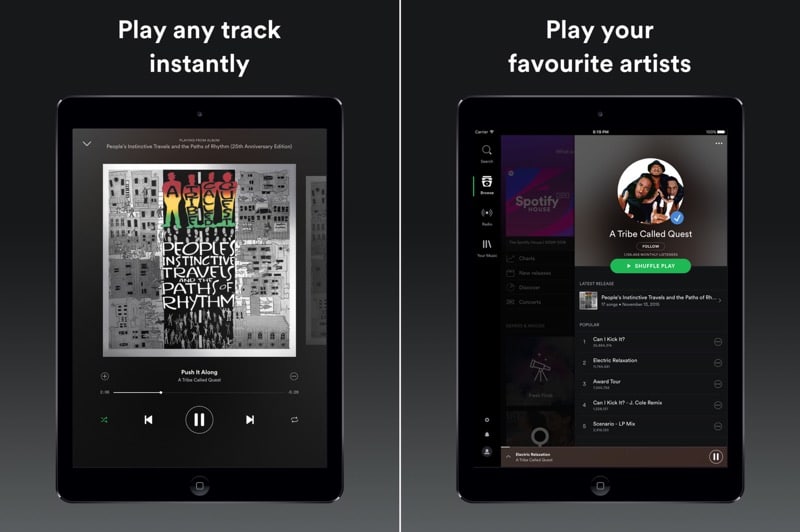
25. Spotify


If you’re going to listen to music on the iPad (and it makes for a great speaker in a small sized room), just use the Spotify app. It’s got a great UI, intelligent recommendations and awesome playlist support. Learn more about Spotify in our tips and tricks guide.

Download: Spotify (Free)

Also Read:jihosoft Free iPhone Data Recovery

Sponsor ads:

Gihosoft Free iPhone Data Recovery:https://www.gihosoft.com/iphone-data-recovery-free.html

Gihosoft iPhone Data Recovery Free

Free iPhone Data Recovery Software for Windows/Mac

Recover up to 12+ types of files, including contacts, SMS, photos, WhatsApp, Viber, notes, etc.

Restore lost data from iOS devices directly or from iTunes and iCloud backup

Recover iPhone data lost due to iOS upgrade/jailbreak, accidental deletion, device lost or broken

Support all the latest iPhone, iPad and iPod Touch

Both Free and Pro version.

If you lost data after you updated to a new iPhone, you can always use Gihosoft iPhone Data Recovery to get the data back from the old iPhone or backup.You may also like: iphonerecovery.com
Also Read:Update Android
Also Read:Top 8 Best Alternative Websites to TamilGun in 2019
Also Read:Free Download FRP Bypass APK for Android 2019


Also Read:Best 10 Movie4k Alternative Websites for Movie Streaming 2019