Saturday, March 2, 2019

How to Fix Viber Update Stuck on iPhone/iPad


Part 1: How to Fix Viber Update Stuck on iPhone/iPad

The different methods highlighted below are known to fix Viber update issues.


1. Restart Your iPhone/iPad


2. Close Background Apps


3. Toggle Airplane Mode on and off


4. Turn Cellular Data on


5. Turn Wi-Fi off and on


6. Change Another Wi-Fi Hotspot


7. Reset Network Settings
1Restart Your iPhone/iPad

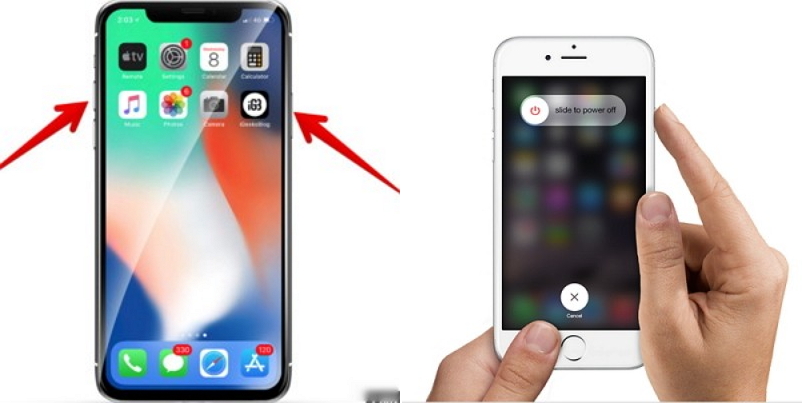
Step 1: Press down both the side and any of the volume buttons until the slider appears for iPhone X. For other models of iPhone and iPads, press down the side or top button until the slider appears.

Step 2: This step applies to all models of iPhone and iPad. Pull down the slider to turn off the device.

Step 3: After turning off the device, whether iPhone or iPad, you can turn it off with the side or top button as applies.


Do note that with iPhone and iPad with at least iOS 11, one can turn them off from the shutdown option available on the general section of the device's setting.
2Close Background Apps

The update issue may be because of the apps running in the background slowing down the device. Close the background apps by following the under-listed steps to fix the Viber update issue.

Step 1: Launch the multitask switcher by pressing the time button twice. It will show you the apps running in the background.

Step 2: Close all the apps running in the background.


3Toggle Airplane Mode on and off

Toggling the Airplane Mode of your iPhone or iPad is the next method fixing the Viber update issue you are experiencing.

Step 1: Pull down the control center of your iPhone or iPad. You would see an airplane icon.

Step 2: Tap on the icon to turn on Airplane Mode.

Step 3: To turn off Airplane Mode, tap on the icon after pulling down the control center then disable it. When Airplane Mode is off, there is no colored indication on the icon.


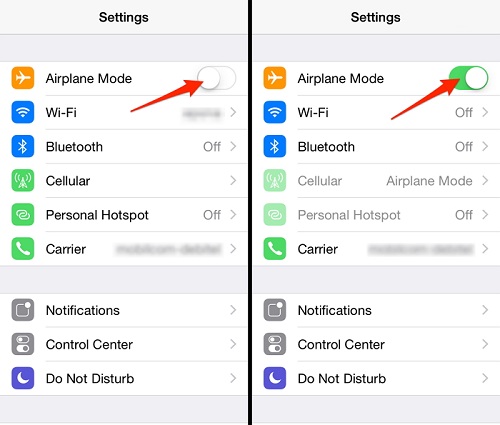
You can also turn Airplane mode on and off from the Settings app. After launching the Settings app, turn on Airplane Mode by turning the switch next to it on.
4Turn Cellular Data on

In cases where the cellular data is turned off, turning it on can fix the Viber update issue. Turn the cellular data of your device on by following the steps listed below.

Step 1: From the apps menu, launch the Settings app. You will find the Cellular Data option.

Step 2: To turn on cellular data, turn the switch beside the Cellular Data on.


5Turn Wi-Fi off and on Also Read:Excel Recovery – Recover Deleted XLS/XLSX Files
Also Read:HEVC Converter: Convert HEVC/H.265 Files on Windows/Mac
Also Read:How to Bypass Android Lock Screen with 3 Methods?

Turning the Wi-Fi of an iPad or iPhone off and on is also known to fix Viber update issues.

Step 1: Pull down the control center for devices with iOS 10 and below. For devices with iOS 11, launch the Settings app.

Step 2: For iOS 10 and below, tap the Wi-Fi icon to turn it on. For iOS 11, turn the switch next to the Wi-Fi option on.

Step 3: To turn off Wi-Fi for devices with devices with OS 10 and 11, follow opposite steps to those for turning the Wi-Fi on.


6Change Another Wi-Fi Hotspot

You can also change Wi-Fi hotspot to sort out Viber app crash. Changing the Wi-Fi hotspot means connecting to another Wi-Fi hotspot and can be done by following the steps stated below.

Step 1: Turn both Wi-Fi and Bluetooth on.

Step 2: From the Settings app, go to Wi-Fi and tap on another device as your hotspot.


7Reset Network Settings

Reset network settings means changing all settings to the default factory setting.

Step 1: Enter Settings app.

Step 2: Go to General and tap the Reset then Reset Network Settings option.

Step 3: You need to confirm your passcode if you have one at this point. Afterward, you would confirm that you want to reset all settings to the default factory setting.


Part 2: Back up iPhone/iPad before Fixing Viber Update Stuck

The importance of backing up one's device before beginning the entire process of fixing a stuck Viber update cannot be overemphasized. This is because when the data is backed up, everything can be easily restored at the end of the process. Otherwise, part of all of the data will be lost after the stuck Viber update is fixed. Backing up of data was emphasized to ensure that one does not lose their data after fixing the update issue which could happen if one doesn't back up their data. After backing up, you can then proceed to fix the stuck Viber update.

Sponsor ads:

Gihosoft Free iPhone Data Recovery:https://www.gihosoft.com/iphone-data-recovery-free.html

Gihosoft iPhone Data Recovery Free

Free iPhone Data Recovery Software for Windows/Mac

Recover up to 12+ types of files, including contacts, SMS, photos, WhatsApp, Viber, notes, etc.

Restore lost data from iOS devices directly or from iTunes and iCloud backup

Recover iPhone data lost due to iOS upgrade/jailbreak, accidental deletion, device lost or broken

Support all the latest iPhone, iPad and iPod Touch

Both Free and Pro version.

If you lost data after you updated to a new iPhone, you can always use Gihosoft iPhone Data Recovery to get the data back from the old iPhone or backup.You may also like: iphonerecovery.com

If you use android phones, please choose Gihosoft Android Data Recovery.

With Gihosoft Android Data Recovery, no longer afraid of data loss!

Must read:Youtube video downloader for pc

Gihosoft RePicvid Free Photo Recovery Software provides a free photo recovery software for windows to help users recover the deleted or lost photo for free.

Jihosoft Android Data Recovery: the best Android Data Recovery software for Windows and Mac to recover deleted contacts, messages, photos, videos, WhatsApp and etc from Android devices.Tips:How to transfer messages from iPhone to iPhone


jihosoft Free iPhone Data Recovery

Friday, March 1, 2019

When/Why You Need to Reset iPhone


When/Why You Need to Reset iPhone
When do We Need to Reset iPhone?

If your iPhone is showing any of the following errors or faults, then it is due for a reset:


If it takes more than five seconds delay for the camera to load the live image


When your keyboard shows a lag while you type a message on SMS or messenger


The long delay in the message list to load up while scrolling down


Has difficulty in joining the established networks


iPhone or iPad might switch off on its own


The screen is just frozen on the opening logo of Apple


Buttons are unresponsive
Why do We Need iPhone/ iPad Reset Tool?

You might be in the middle of a conversation when your iPhone might simply switch off on its own. There might be times when you are about to capture the most unbelievable or once in a lifetime shot with your iPhone but the camera delays in opening up. That is when you realize that it is time that you reset the iPhone.

Many times, even iTunes will not be able to discover or identify the device on the computer. Such times call for you to take the desperate measures. On resetting your iPhone you simply will be removing all your personal preferences and information from the phone, allowing it to go back to its default factory settings. Some basic programming will not be in any way altered.Also Read:Excel Recovery – Recover Deleted XLS/XLSX Files
Also Read:HEVC Converter: Convert HEVC/H.265 Files on Windows/Mac
Also Read:How to Bypass Android Lock Screen with 3 Methods?

Thursday, February 28, 2019

How to Download Zedge Ringtones to iPhone from Computer


How to Download Zedge Ringtones to iPhone from Computer

It's recommended download Zedge ringtones from its website because its app is not as good as before.
#1. Online Download Zedge Ringtones to Computer

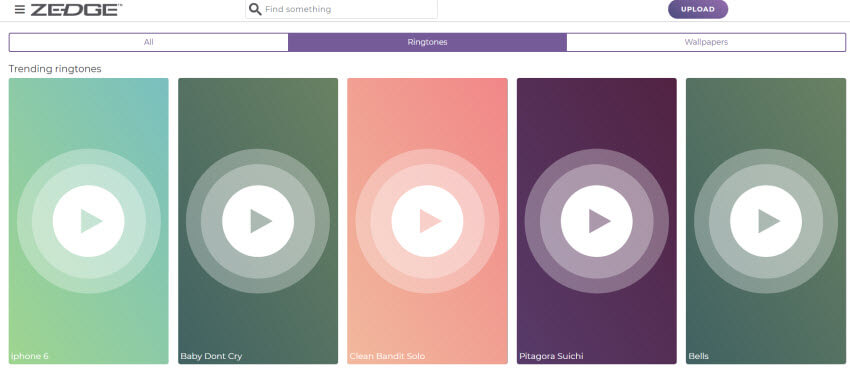
Since Zedge ringtone app is not a good one any more, you can also download ringtones to PC from Zedge website. But you’ll need to go online and create an account with Zedge Ringtones before you can be allowed access to browse featured ringtones. Here is how to download Zedge Ringtones to a computer in few steps:


Go to the Zedge ringtones official website. It will show you some ringtones there.


You can browse the ringtones, or you can search the ringtone you want in the search bar.


Click the play button and you can previerw the ringtone.


Then click the ringtone and you will see the download button there.


Click on it and it will start downloading the ringtone.


Note The ringtone you download from Zedge website is MP3 format which is not suitable for iPhone. So you need to convert it to M4R format and transfer the ringtone to your iPhone. The best-recommended tool for this task is iMyFone TunesMate. It can do the conversion and transfer all at once.

Sponsor ads:

Gihosoft Free iPhone Data Recovery:https://www.gihosoft.com/iphone-data-recovery-free.html

Gihosoft iPhone Data Recovery Free

Free iPhone Data Recovery Software for Windows/Mac

Recover up to 12+ types of files, including contacts, SMS, photos, WhatsApp, Viber, notes, etc.

Restore lost data from iOS devices directly or from iTunes and iCloud backup

Recover iPhone data lost due to iOS upgrade/jailbreak, accidental deletion, device lost or broken

Support all the latest iPhone, iPad and iPod Touch

Both Free and Pro version.

If you lost data after you updated to a new iPhone, you can always use Gihosoft iPhone Data Recovery to get the data back from the old iPhone or backup.You may also like: iphonerecovery.com

If you use android phones, please choose Gihosoft Android Data Recovery.

With Gihosoft Android Data Recovery, no longer afraid of data loss!

Must read:Youtube video downloader for pc

Gihosoft RePicvid Free Photo Recovery Software provides a free photo recovery software for windows to help users recover the deleted or lost photo for free.

Jihosoft Android Data Recovery: the best Android Data Recovery software for Windows and Mac to recover deleted contacts, messages, photos, videos, WhatsApp and etc from Android devices.Tips:How to transfer messages from iPhone to iPhone

jihosoft Free iPhone Data Recovery
How Do I Turn a Song into an iPhone Ringtone without iTunes 12.7?

The recent update in iTunes does not have "Tones" tab as the older versions did, making it difficult to turn a song into an iPhone ringtone with iTunes. Now, many iPhone users wondering how to turn a song into an iPhone ringtone without iTunes 12.7.

You can turn a song into iPhone ringtone without iTunes 12.7. All you need is to download and install a free ringtone maker, and your best rack will become your iPhone custom ringtone. Hence, we shall be discussing how to turn a song into an iPhone ringtone in the next two parts of this post.


Method 1: Turn a Song into an iPhone Ringtone with iPhone App

We can use an iPhone app to turn a song into a ringtone on iPhone. Here we use GarageBand for iOS. This iOS app makes it pretty easy and incredibly simple for you to play, record and share songs between smartphones from anywhere, and gives you access to a wide range of instruments used around the world for you to make songs right from your iPhone, iPad or iPod touch.

Step-by-Step Guide to Turn a Song into an iPhone Ringtone with GarageBand for iOS:

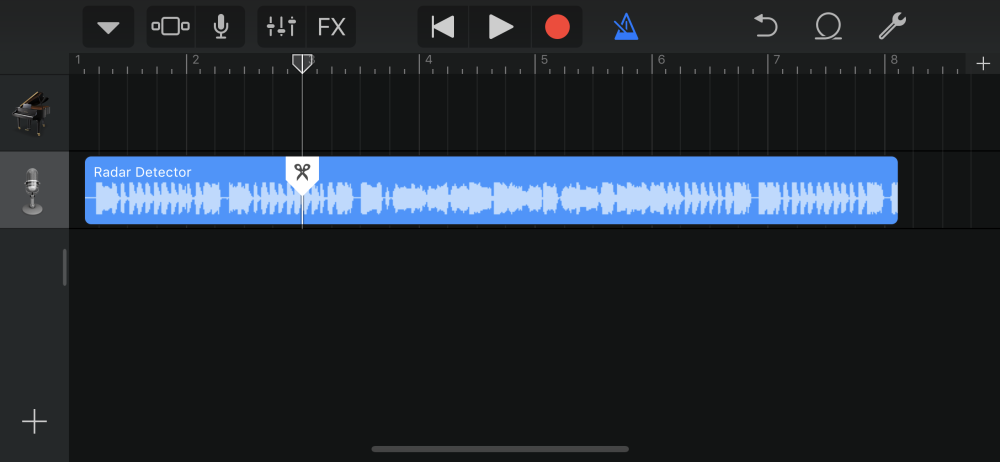
  1. You’ll need to update your iOS device to the latest version before using this app. If you’ve done that, then click “+” at the top right corner of GarageBand app.
  2. Choose your Audio Input but selecting your Audio Recorder card.
  3. The next thing to do is to wait for your new window to load, then click on the menu icon (the three-line button) on the top left corner of your app window.
  4. It’s now time to import your song. Click on the loop icon in the right top corner of the app.
  5. Choose the source where you want to import the song from, it can be from your music library or iCloud Drive. If the song is on your iPhone, click the Music tab to import from your iPhone.
  6. Click and hold the files to drag it to the left side of GarageBand.
  7. Set the timer but don’t let it exceed 30 seconds.

    Sponsor ads:Share YouTube Video at Specific Time on Mobile and PCMust Read:If you lost data after you updated to a new iPhone, you can always use Gihosoft iPhone Data Recovery to get the data back from the old iPhone or backup.

    Gihosoft Free iPhone Data Recovery:iphonerecovery.com
    If you use android phones, please choose Gihosoft Android Data Recovery
  8. Hit the downward pointing Triangle icon on the top left of the page, and click “My Songs” to save the newly created ringtone.
After these steps, you’ve created your ringtone, but it’s still within the app. Here is how to export and use the newly created ringtone.
  1. Go back to the GarageBand home screen and click the Select tab on the top right bar. The ringtone will start jiggling, tap the box to mark it blue and click the top left Upload icon.
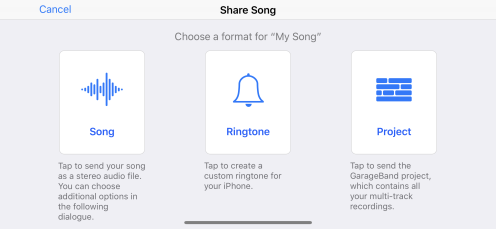
  2. Apple’s default share page will appear, click on Ringtone icon to confirm. Name your ringtone and hit “Export”.
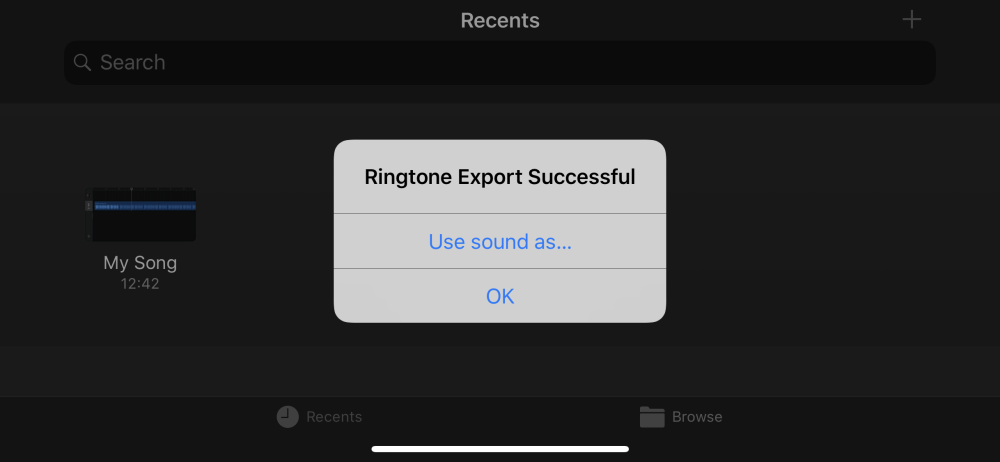
  3. When the export is complete, a notification tray will pop up, click “Use Ringtone As… > Standard Ringtone”. This would set the newly created ringtone as your iPhone ringtone.

Disadvantages of Using GarageBand in Making Ringtones for iPhone:

  1. The process of turning a song to iPhone ringtone using GarageBand is rigorous and tiring.
  2. If you are new to this app, you’ll notice the limitation to a small number of smart instruments.
  3. The app only permits the most recent version of iOS, so any person with earlier version will not be able to access this app.
Sponsor ads:
Gihosoft iPhone Data Recovery Free
Free iPhone Data Recovery Software for Windows/Mac
Recover up to 12+ types of files, including contacts, SMS, photos, WhatsApp, Viber, notes, etc.
Restore lost data from iOS devices directly or from iTunes and iCloud backup
Recover iPhone data lost due to iOS upgrade/jailbreak, accidental deletion, device lost or broken
Support all the latest iPhone, iPad and iPod Touch
Both Free and Pro version.
If you lost data after you updated to a new iPhone, you can always use Gihosoft iPhone Data Recovery to get the data back from the old iPhone or backup.You may also like: iphonerecovery.com
If you use android phones, please choose Gihosoft Android Data Recovery.
With Gihosoft Android Data Recovery, no longer afraid of data loss!
Gihosoft RePicvid Free Photo Recovery Software provides a free photo recovery software for windows to help users recover the deleted or lost photo for free.
Jihosoft Android Data Recovery: the best Android Data Recovery software for Windows and Mac to recover deleted contacts, messages, photos, videos, WhatsApp and etc from Android devices.Tips:How to transfer messages from iPhone to iPhone

Tips to Instantly Fix YouTube Playback Error 2019

Tips to Instantly Fix YouTube Playback Error 2019
You may be worried when you play YouTube videos and see a notification “YouTube playback error, please try again later”. This problem is common on YouTube. Most times, you can easily fix this YouTube error by refreshing your browser. Or you can try the following solutions to check if they work perfectly for you:

Clear History, Cookies, and Cache on your browser.

You can pause the video and change the video resolution (360p, 480p, 720p) as indicated by the YouTube player.

Ensure that your plug-ins is updated to the latest version.

You can disconnect graphics hardware acceleration. Make sure you save your data before you restart your browser.

Disconnect youtube.com in the HTTPS and watch YouTube videos in your browser profile.

You can reset the router, and this can often solve the issue “YouTube playback error”.


Other Four Methods to Fix YouTube Playback Error

If the steps discussed above didn’t work for you, try the four methods below. You don’t need to try all these methods, but you can try them until you get the one that works for you.
1 Sign Out Your Google Account from YouTube

Sign out your Google account if you have signed in to YouTube; try to make use of the YouTube again. If Google account caused the problem, it would be resolved immediately.
2 Uninstall YouTube and Reinstall It

If your YouTube app has any setback, the problem may be showing YouTube playback error. To fix the problem, you can uninstall and reinstall your YouTube app.
3 Update the Router Firmware

Most iPhone users claimed that updating the router firmware works perfectly for them. If you want to update the router firmware, you have to check the latest model online. You can find the needed information on the router seller’s website.
4 Change the DNS Address

You can follow these steps to change the DNS address to fix YouTube playback error:


Step 1: Click on the device settings

Step 2: Click on Wi-Fi. (Make sure that your iPhone can connect to the Wi-Fi network.)

Step 3: Select the information icon

Step 4: Finally, you can change the DNS to 8.8.8.8.
How to Download YouTube Video for Free

After knowing how to fix YouTube playback error, do you know how to download YouTube video? The best way to download YouTube video for free is on some recommended websites. Here are some of the sites to download YouTube videos for free:
1 save-vid.com

save-vid.com allows users to download YouTube video for free. Paste the web address, choose the video format and tap on Download. Apart from YouTube, many online video websites are supported for you to download their data.


2 Savefrom.net

There are many ways to download your YouTube videos, and Savefrom.net makes it easy for you. If you want to watch video on your browser, all you have to do is to include “ss” in front of youtube.com in the web address.Sponsor ads:Hack Someone’s Cell Phone With Just Their Number
Sponsor ads:Fix Windows 10/8 100% Disk Usage with 5 Methods 2019

For instance, http://www.ssyoutube.com/watchXXXX which looks good, isn’t it?


3 VideoGrabber.net

VideoGrabber.net makes it easier for you to download YouTube video. To download video on this website, paste the YouTube web address on the field, click “OK” and the applet will set up your request. This website will permit you to convert video formats for local files.


4 FLVto.com

FLV.com provides an easy method to download video from YouTube by pasting the web address. You have to install a program on your computer to download the video yourself. Otherwise, you will only have the copy of the audio in MP3 format; this makes this service ideal for people that want to download music from YouTube videos.


5 Ace Downloader

Ace downloader is a downloading service that works perfectly with Java applet on your browser. The process may be slow, but the website is visually attractive. You have to download software to able to use it.Sponsor ads:

Gihosoft Free iPhone Data Recovery:https://www.gihosoft.com/iphone-data-recovery-free.html

Gihosoft iPhone Data Recovery Free

Free iPhone Data Recovery Software for Windows/Mac

Recover up to 12+ types of files, including contacts, SMS, photos, WhatsApp, Viber, notes, etc.

Restore lost data from iOS devices directly or from iTunes and iCloud backup

Recover iPhone data lost due to iOS upgrade/jailbreak, accidental deletion, device lost or broken

Support all the latest iPhone, iPad and iPod Touch

Both Free and Pro version.

If you lost data after you updated to a new iPhone, you can always use Gihosoft iPhone Data Recovery to get the data back from the old iPhone or backup.You may also like: iphonerecovery.com

If you use android phones, please choose Gihosoft Android Data Recovery.

With Gihosoft Android Data Recovery, no longer afraid of data loss!

Must read:Youtube video downloader for pc

Gihosoft RePicvid Free Photo Recovery Software provides a free photo recovery software for windows to help users recover the deleted or lost photo for free.

Jihosoft Android Data Recovery: the best Android Data Recovery software for Windows and Mac to recover deleted contacts, messages, photos, videos, WhatsApp and etc from Android devices.Tips:How to transfer messages from iPhone to iPhone

Also Read:How to Delete Embarrassing Word Suggestions from Android Keyboard

Also Read:5 Best Video to MP3 Converter to Extract Audio from Video Files
jihosoft Free iPhone Data Recovery


How to Add YouTube Video from Computer to iPhone

iMyFone TunesMate allows users to add video files from iPhone to the computer, including Music videos, Movies, TV Shows etc. This makes it easy for users to watch their favorite videos and movies. It can also be used to transfer saved movies or videos like YouTube videos to your iPhone.

Wednesday, February 27, 2019

Top Solutions to Fix iCloud Photos Not Downloading 2019


Question: What is the best way to fix an error downloading from iCloud photo library?

Given how limited an iPhone’s storage is, the best way to conserve your storage space is to have your photos kept on your iCloud account. But, as of recently, many iCloud users have been having issues with their iCloud photos not downloading. If this is an error that you’ve had to deal with, read our guide below for some of the most effective fixes.

The precise reason for experiencing issues with iCloud photo library is unknown as there are a lot of different causes. For that reason, we’ve detailed some of the fixes that we’ve found to be useful for fixing the problem below.

Sponsor ads:iPhone/iPad Keeps Restarting? Here’s the Fix!
Fix 1: Turn Airplane Mode off & on through Settings


Fix 2: Restart Your iOS Device


Fix 3: Check Your iPhone’s Storage Space


Fix 4: Sign out & back into iCloud


Fix 5: Enable Cellular Data for Photos


Fix 6: Enable “Download and Keep Originals”


Fix 7: Reset Your iPhone & Restore from iCloud Backup


Fix 8: An All-in-One Tool to Fix iCloud Photo Library Cannot Download Photos
Fix 1: Turn Airplane Mode off & on through Settings

One of the first things that you should check is your iPhone’s network connection. If there is a problem with the connection, then this will prevent iCloud from working properly. Rather than disable every individual network connection, you can use Airplane Mode.

1. Unlock your iPhone and open the “Settings” app.

2. Below your iCloud name at the top of the menu, tap on the “Airplane Mode” slider to enable it.

3. Wait about 30 seconds, tap on the slider to disable Airplane Mode, and your connections will be reestablished.

Airplane Mode disconnects Bluetooth, Wi-Fi, and data connections. If the problem lies with either of these then this will fix it.


Fix 2: Restart Your iOS Device

Sometimes all you need is to turn your iPhone off and back on. Even though most people say this as a joke, it can actually fix the majority of tech-related issues.

1. Double click the home button and swipe upwards on all of your apps to close them.

2. Hold your iPhone’s lock key until the power slider appears. Swipe this slider to turn it off.

3. Wait about 30 seconds until your iPhone has turned off, then turn it back on.


It’s important that you force close all of your apps. By doing this, you can rule out whether or not an app could be interfering with iCloud.
Fix 3: Check Your iPhone’s Storage Space

If there isn’t sufficient space for your iCloud photos to download, you won’t be able to access them. Fortunately, checking your iCloud’s storage is easy.

1. Open the “Settings” app.

2. Swipe down to “Storage & iCloud Usage”.

3. Check the storage information.


Unless you take hundreds of photos, if you have a newer iPhone then it’s unlikely that storage will be a problem. Nonetheless, you should check it.
Fix 4: Sign out & back into iCloud

If storage isn’t the issue, then it could be an iCloud problem. By signing out and back into your iCloud account, you can check if this is the case.

1. Open the “Settings” app and tap on your name at the top of the menu.

2. Swipe to the bottom and tap on “Sign Out”. You may be prompted to enter your account password.

3. Once you’ve signed out, wait a few minutes and sign back in.


All this will do is refresh the connection and if there was an issue beforehand, this will resolve it.
Fix 5: Enable Cellular Data for Photos

The problem could be as simple as accidentally disabling a setting. One specific setting that you should check is whether or not photos are set to download using your cellular data.

All you have to do here is go to “Settings > Cellular”, and check if it is enabled or disabled. If it hasn’t been enabled, do so now.


Fix 6: Enable “Download and Keep Originals”

iCloud is a very flexible platform and offers multiple photo management settings. You can change one of these settings and, hopefully, it will fix iCloud photo library not working.

1. Go to “Settings > YourName > iCloud > Photos”.

2. Instead of “Optimize iPhone Storage”, tap on “Download and Keep Originals”.

3. The original photos will now be downloaded.


The only downside to changing this setting is that more of your iPhone’s storage will be filled. If you have limited storage, you should try something else beforehand.
Fix 7: Reset Your iPhone & Restore from iCloud Backup

Have none of the fixes so far helped to fix the error iCloud photo library? As a last resort, you can try resetting your iPhone and restoring your data from an iCloud backup.

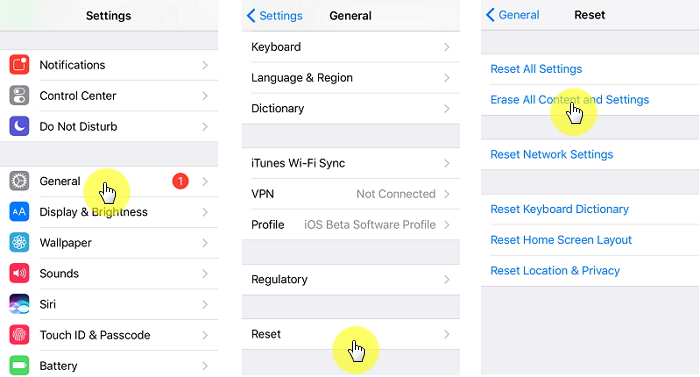
1. Go to “Settings > General > Reset” and tap on “Erase All Content and Settings”.

2. You’ll be asked to enter your passcode and after doing so, the device will be wiped.

3. Once your data is removed you will be given the option to “Restore Backup from iCloud”. Select the backup that you want to restore, and your data will be downloaded again.


Make sure that before you reset your iPhone, you take a backup of your data to ensure that you don’t lose important files.
Fix 8: An All-in-One Tool to Fix iCloud Photo Library Cannot Download Photos

Sponsor ads:

Gihosoft Free iPhone Data Recovery:https://www.gihosoft.com/iphone-data-recovery-free.html

Gihosoft iPhone Data Recovery Free

Free iPhone Data Recovery Software for Windows/Mac

Recover up to 12+ types of files, including contacts, SMS, photos, WhatsApp, Viber, notes, etc.

Restore lost data from iOS devices directly or from iTunes and iCloud backup

Recover iPhone data lost due to iOS upgrade/jailbreak, accidental deletion, device lost or broken

Support all the latest iPhone, iPad and iPod Touch

Both Free and Pro version.

If you lost data after you updated to a new iPhone, you can always use Gihosoft iPhone Data Recovery to get the data back from the old iPhone or backup.You may also like: iphonerecovery.com

If you use android phones, please choose Gihosoft Android Data Recovery.

With Gihosoft Android Data Recovery, no longer afraid of data loss!

Must read:Youtube video downloader for pc

Gihosoft RePicvid Free Photo Recovery Software provides a free photo recovery software for windows to help users recover the deleted or lost photo for free.

Jihosoft Android Data Recovery: the best Android Data Recovery software for Windows and Mac to recover deleted contacts, messages, photos, videos, WhatsApp and etc from Android devices.Tips:How to transfer messages from iPhone to iPhone


jihosoft Free iPhone Data Recovery

Ways to Fix iPhone Photos Not Showing Up on PC 2019


5 Common Solutions

Here are some other methods to resolve iPhone photos not showing up on PC:
1Reboot Computer and Restart Your iPhone

This is the easiest method to restore iPhone photos; this method will not delete any file on your iPhone.
2Change the USB Port of Your PC

You can try other USB port if you have anyone.
3Unlock Your iPhone

Ensure that your iPhone is unlocked and has trusted computer. If your iPhone is locked, the camera roll containing all your photos will be empty. Try to disconnect your iPhone and unlock your iPhone screen, connect your iPhone back to the computer. After few minutes, the iPhone photos not showing up on PC problem will be solved.


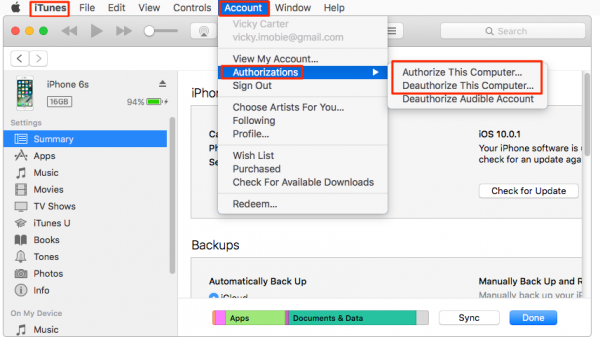
4Authorize the Computer

Step 1: Connect your iPhone with a USB cable.

Step 2: Click on iTunes main menu.

Step 3: Open account authorizations.

Step 4: Authorize your computer.

Step 5: Insert your username and password. Then, you can now see the photos showing on your computer.


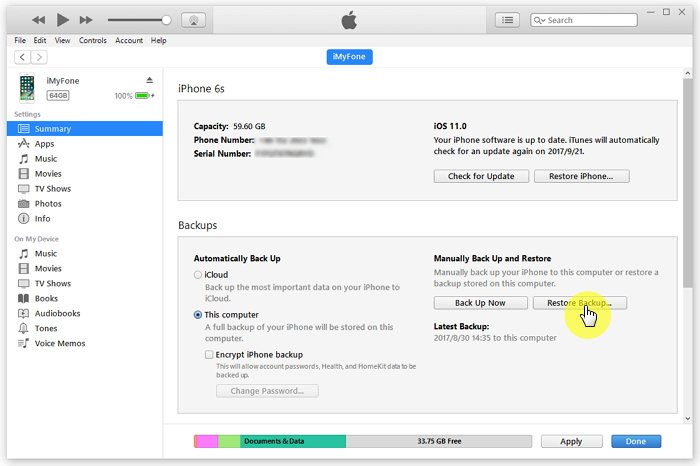
5 Restore iPhone with iTunes

Step 1: Click on iTunes on your computer used to back up your device.

Step 2: Use your USB cable to connect your iPhone to your computer.

Step 3: Choose your iPhone when it appears in iTunes. If your device does not display on iTunes, tap on learn more.

Step 4: Click on restore backup in iTunes.

Step 5: Check the size and date of each backup and select the most relevant.

Step 6: Tap on restore and wait for few minutes to finish.

Step 7: Make sure your device is connected after it restarts and wait for some minutes to sync with your computer. You can disconnect your device when the sync is complete.


Sponsor ads:

Gihosoft Free iPhone Data Recovery:https://www.gihosoft.com/iphone-data-recovery-free.html

Gihosoft iPhone Data Recovery Free

Free iPhone Data Recovery Software for Windows/Mac
Recover up to 12+ types of files, including contacts, SMS, photos, WhatsApp, Viber, notes, etc.

Restore lost data from iOS devices directly or from iTunes and iCloud backup

Recover iPhone data lost due to iOS upgrade/jailbreak, accidental deletion, device lost or broken

Support all the latest iPhone, iPad and iPod Touch

Both Free and Pro version.

If you lost data after you updated to a new iPhone, you can always use Gihosoft iPhone Data Recovery to get the data back from the old iPhone or backup.You may also like: iphonerecovery.com
If you use android phones, please choose Gihosoft Android Data Recovery.

With Gihosoft Android Data Recovery, no longer afraid of data loss!

Must read:Youtube video downloader for pc

Gihosoft RePicvid Free Photo Recovery Software provides a free photo recovery software for windows to help users recover the deleted or lost photo for free.

Jihosoft Android Data Recovery: the best Android Data Recovery software for Windows and Mac to recover deleted contacts, messages, photos, videos, WhatsApp and etc from Android devices.Tips:How to transfer messages from iPhone to iPhone

jihosoft Free iPhone Data Recovery