Thursday, July 4, 2019

How to Crop, Rotate, and Straighten Your Photos in iOS 13


In iOS 13, Apple enhanced the built-in photo editing capabilities available on iPhones and iPads, and redesigned the photo editing interface to make it easier to manipulate your pictures.


This article offers a brief introduction to the new photo editing interface in the stock Photos app by looking at how you can crop, rotate, and straighten your shots in next to no time.


The first thing to do is launch the stock Photos app on your iPhone or iPad, and then using the Photostab (shown in the first screen below) tap to select a picture from your Photo library.


If it isn't a recent photo that you want to edit, you can use the Days, Months, and Yearsviews to whittle down your collection. Alternatively, select a photo from one of your albums via the Albums tab.


Once you've selected a picture, tap Edit in the top-right corner of the screen to enter the black editing interface.
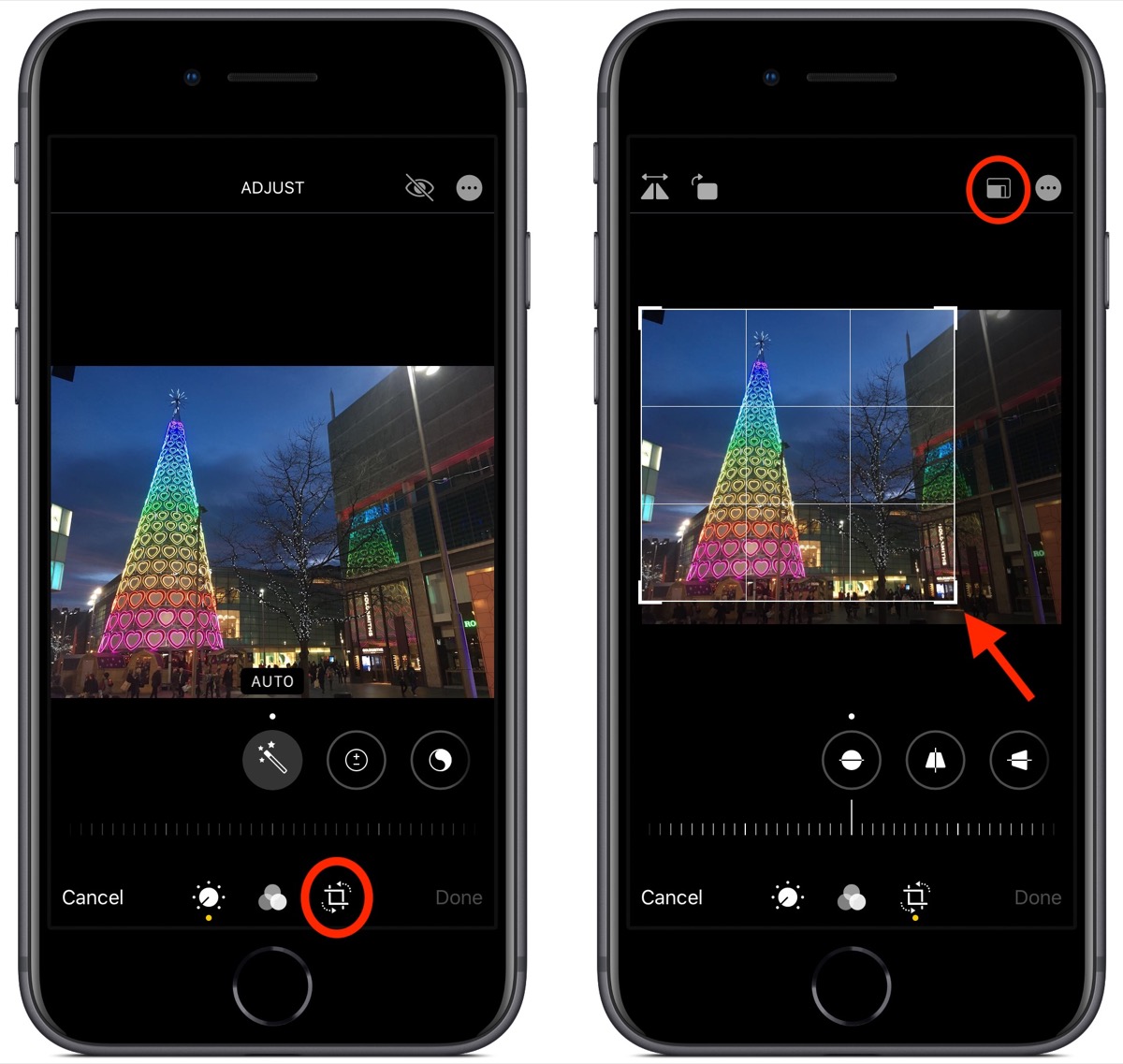


Next, tap the Crop tool (the rightmost tool icon at the bottom of the screen). Notice that a grid now overlays your picture. Drag any corner of this frame to custom crop the image. You can also choose from a set of pre-defined cropping ratios by tapping the first of the two icons in the top-right corner of the screen.


Notice that the horizontal strip of adjustment tools below the photo also changed when you selected the Crop icon. From left to right, these allow you to straighten the image, adjust vertical alignment, and adjust horizontal alignment.
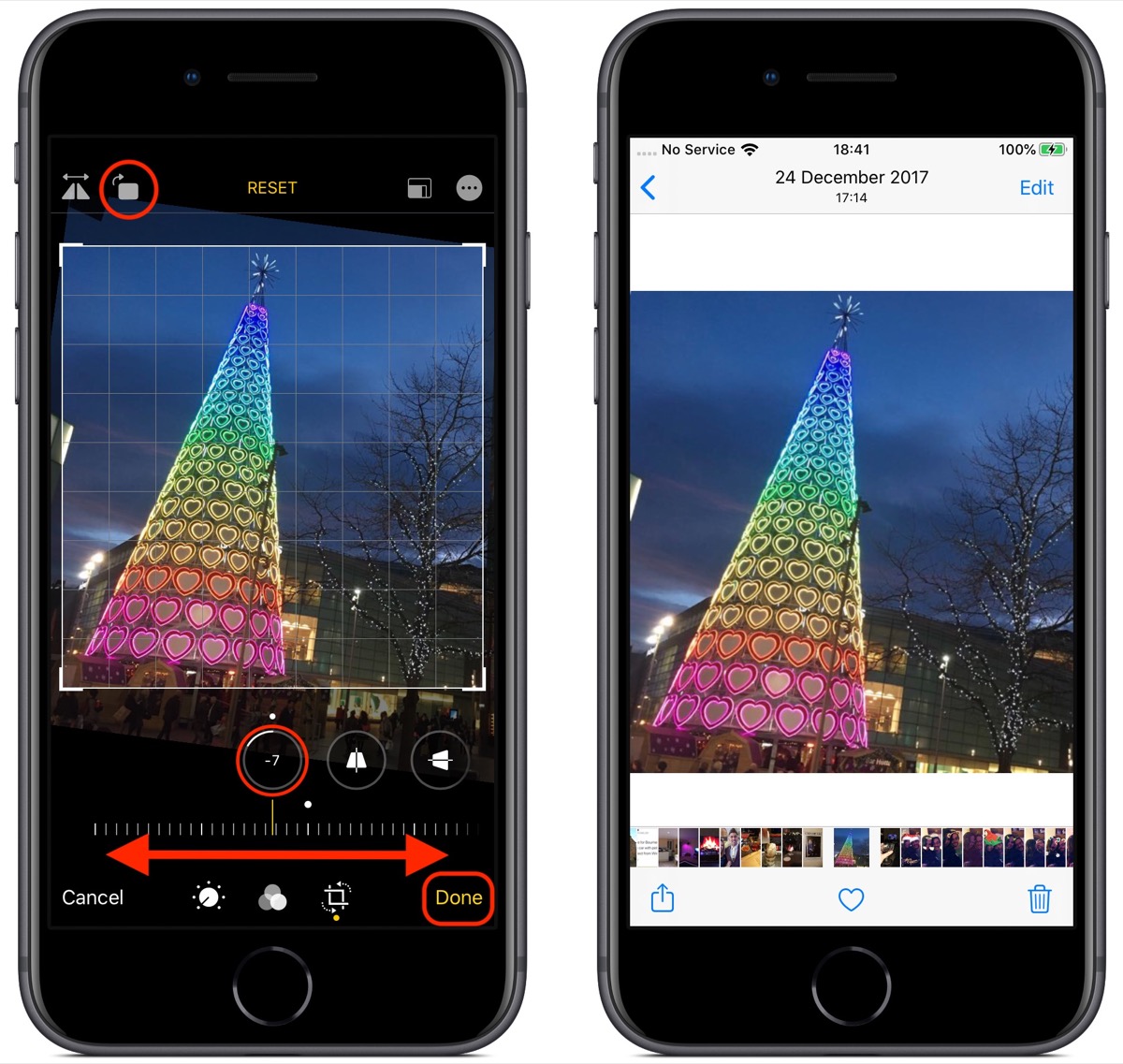


Tap one of the tools and slide the horizontal dial left or right with your finger to adjust to the desired level, indicated by the number in the selected tool's icon. At the top-right corner of the editing interface you'll also see more tools allowing you to flip and rotate the image.


If you make a mistake when editing your photo, simply tap the Reset button to the right of these tools to undo your adjustments. Press Done in the bottom-right corner of the screen when you're happy with your edits and they'll be automatically saved.


Remember, in addition to using the Photos app, you can also use these editing tools whenever you take a picture using the built-in Camera app – you don't even have to unlock your device to edit the photo you just shot.Sponsor ads:

Gihosoft RePicvid Free Photo Recovery Software provides a free photo recovery software for windows to help users recover the deleted or lost photo for free.

If you lost data after you updated to a new iPhone, you can always use Gihosoft iPhone Data Recovery to get the data back from the old iPhone or backup.You may also like: iphonerecovery.com

Monday, June 17, 2019

Kuo: Apple Will Launch 5.45-inch and 6.7-inch 5G iPhones in 2020


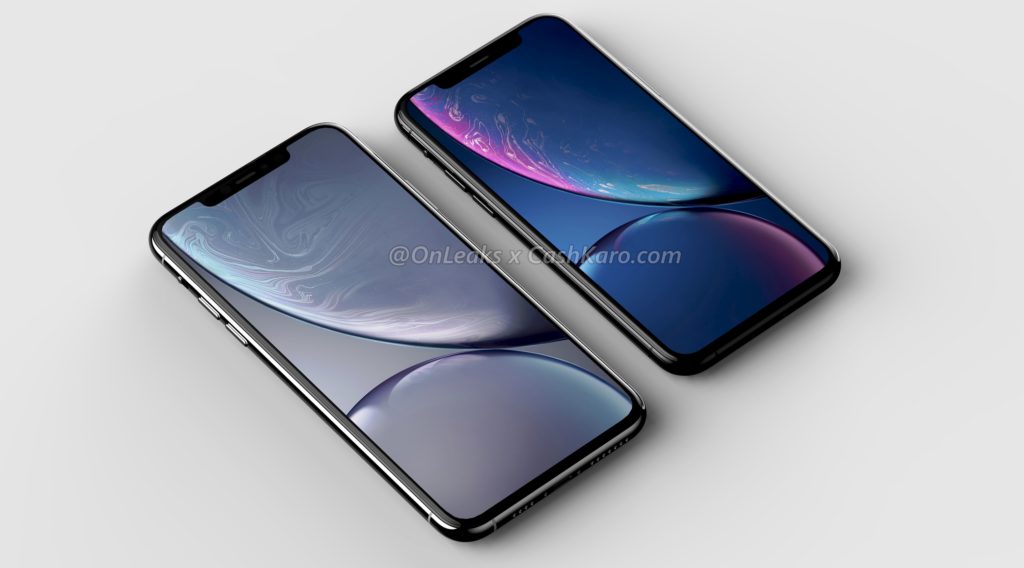
In his latest research note, Ming-Chi Kuo says that Apple will be launching three new iPhones in 2020 with OLED displays. The display sizes will be different from Apple’s current iPhone lineup which includes the 6.1-inch iPhone XR, 5.8-inch iPhone XS, and the 6.5-inch iPhone XS Max.

The 2020 iPhone lineup will comprise of a low-end 6.1-inch iPhone featuring an OLED display and LTE connectivity. The 5.8-inch iPhone XS will be replaced by a smaller 5.45-inch 5G iPhone, with the iPhone XS Max being replaced by a bigger 6.7-inch OLED 5G iPhone. For its 5G chips, Apple will be securing the modem from Qualcomm, with Samsung complementing it. The RF power amplifiers will be supplied by Broadcom.

While two out of the three iPhones that Apple launches in 2020 will feature 5G connectivity, Kuo expects Apple to move its entire iPhone lineup to 5G by 2021. The analyst also believes that Apple’s own in-house developed 5G modem will be ready for use by 2022 or 2023 which should allow the company to reduce its reliance on Samsung and Qualcomm.
Our Take

Rumors of Apple working on a 5G iPhone for 2020 have been circulating for quite some time now. This was one of the key reasons as to why Apple decided to settle with Qualcomm and paid it billions of dollars. Given that the 5G iPhones will launch with a completely new design, it makes sense for Apple to play around with the display sizes as well.

The 5.45-inch iPhone with its minimal bezels should be the perfect iPhone SE replacement for many, while the 6.7-inch 5G iPhone should be perfect for power users. It remains to be seen if Apple will be able to further reduce the bezel size on its 2020 iPhones or it would increase the overall footprint of the 6.7-inch iPhone to factor in the bigger display.Sponsor ads:

Gihosoft RePicvid Free Photo Recovery Software provides a free photo recovery software for windows to help users recover the deleted or lost photo for free.

If you lost data after you updated to a new iPhone, you can always use Gihosoft iPhone Data Recovery to get the data back from the old iPhone or backup.You may also like: iphonerecovery.com

iPhone Manager:Get the ultimate Gihosoft iPhone Manager. Free download for PC/Mac.
[Via Antutu]

Monday, June 3, 2019

How Dark Mode in iOS 13 Looks Like


iOS 13 comes with plenty of new features but for many, the biggest highlight of the release is going to be the new Dark mode. Apple has finally added a native system-wide Dark mode to the OS which looks stunning on iPhones with an OLED display. Even on the iPhone XR with its Liquid Retina LCD display, Dark mode gives the UI a very refreshed look.

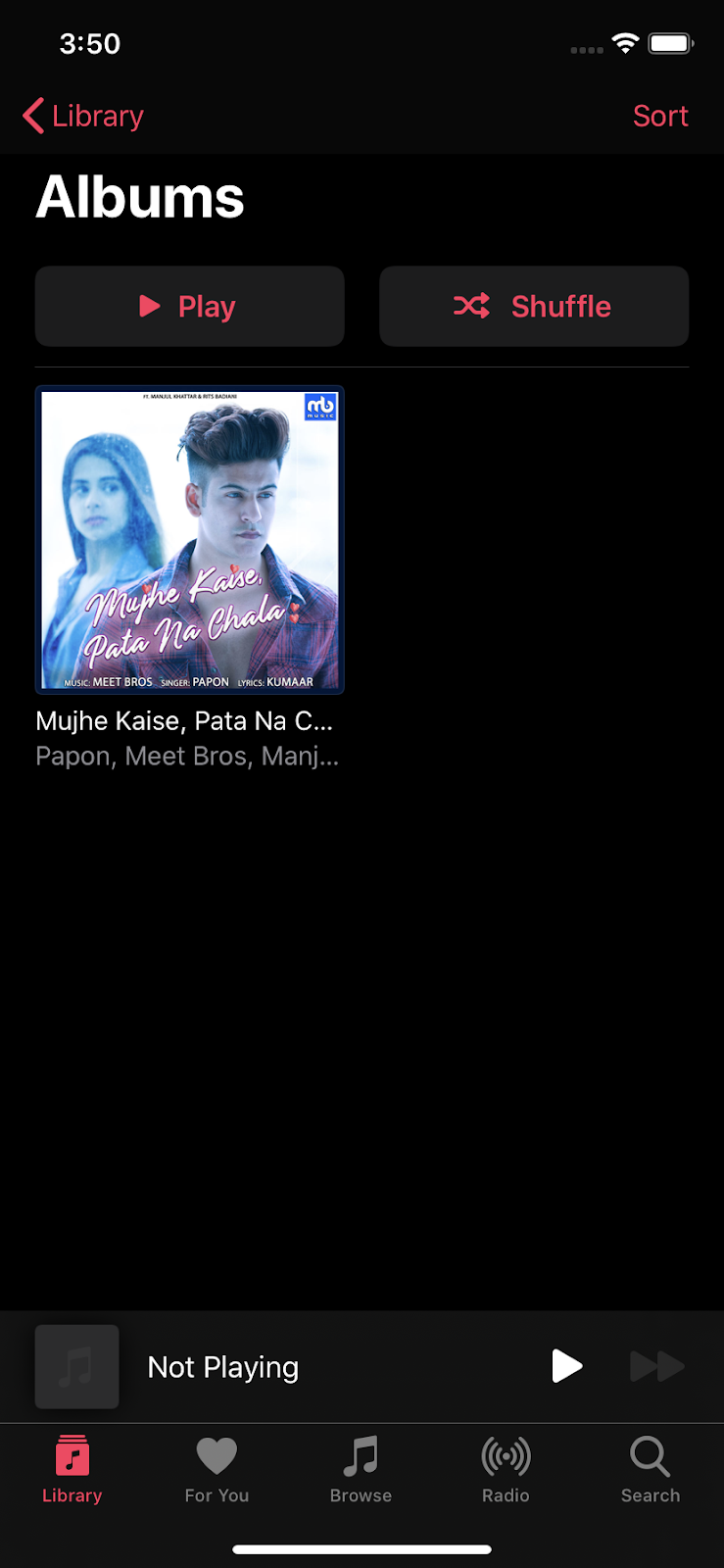
Apple seems to have put a lot of thought into Dark mode in iOS 13. The company has not simply used a black background across iOS as that would have made things difficult to read. Instead, it uses different shades of dark backgrounds to differentiate UI elements from each other and ensure that text is easier to read.

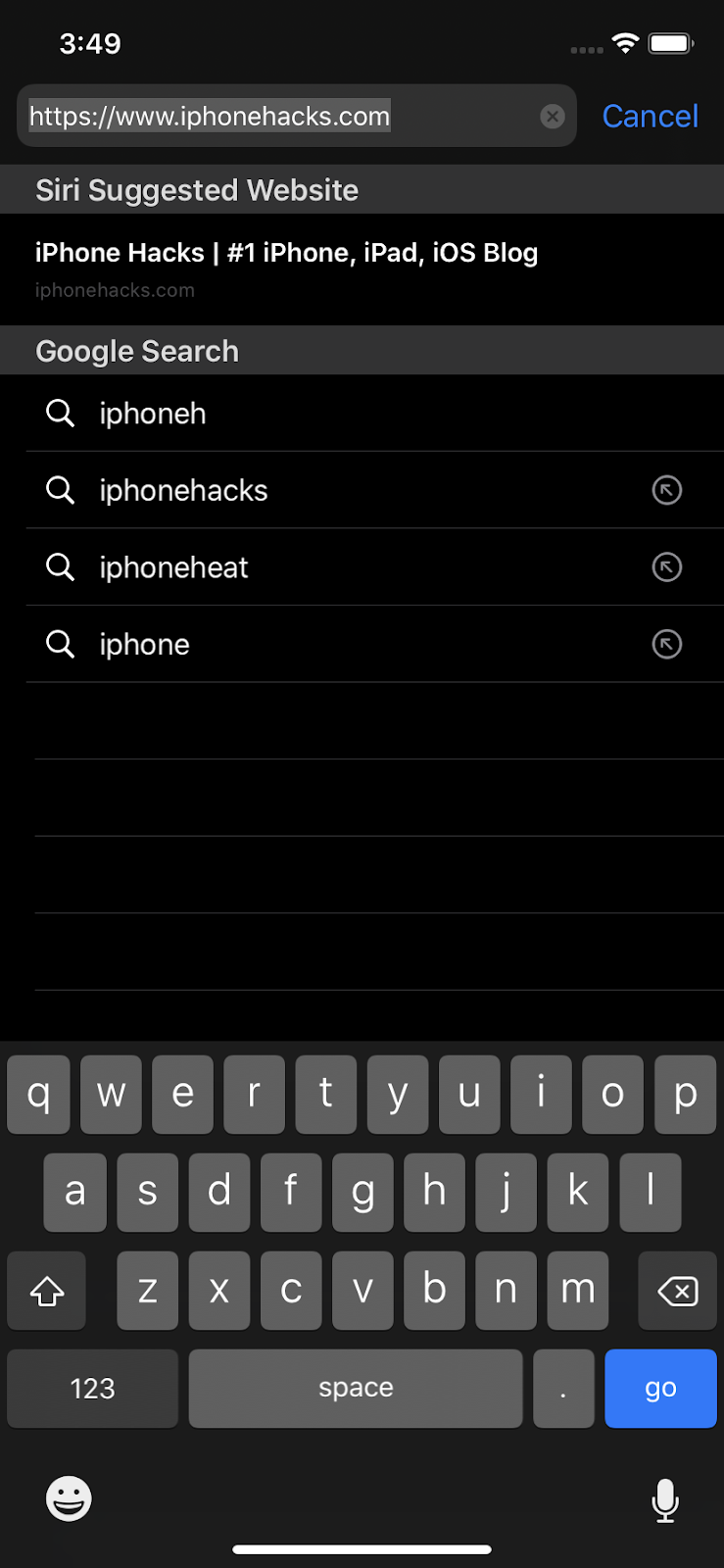
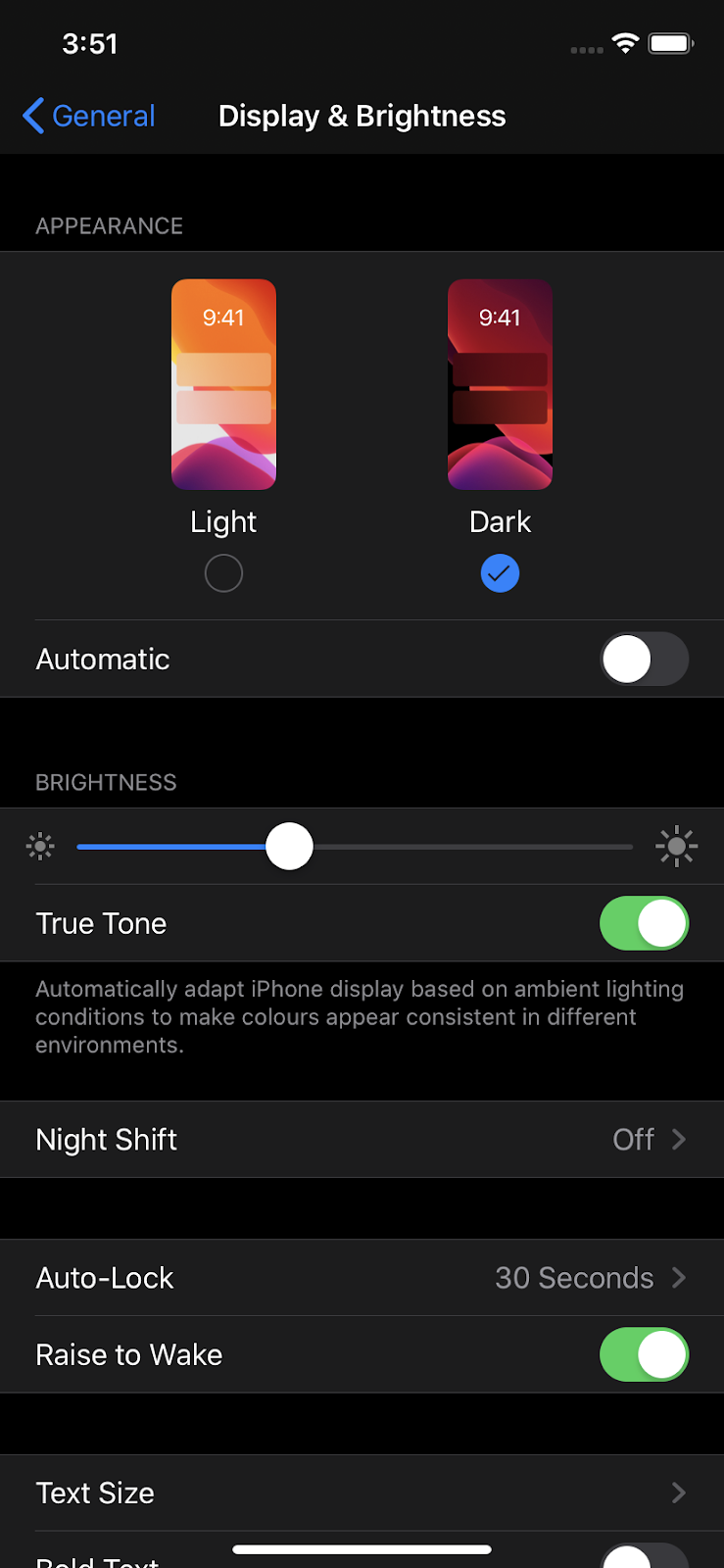
Dark mode in iOS 13 can be triggered either from the Control Center or from Settings -> Display. Apart from triggering it manually, there’s an option to trigger it automatically after sunset or one can set up a custom schedule as well. Below is a gallery showing how iOS 13 looks like with Dark mode enabled.


Dark mode can be enabled from the Control Center…


Or it can be enabled from Settings -> Display & Brightness.


Dark mode can be enabled automatically after sunset or a custom schedule can be specified.


Dark mode in Safari has been thought out properly…


It does not force render websites with a dark background like some other browser.


The new Reminders app in iOS 13.


The Health app looks pretty good with Dark mode enabled.


Some iOS 13 system apps with Dark mode enabled…


Even the App Store gets a Dark theme in iOS 13.


The Files app with Dark mode enabled.


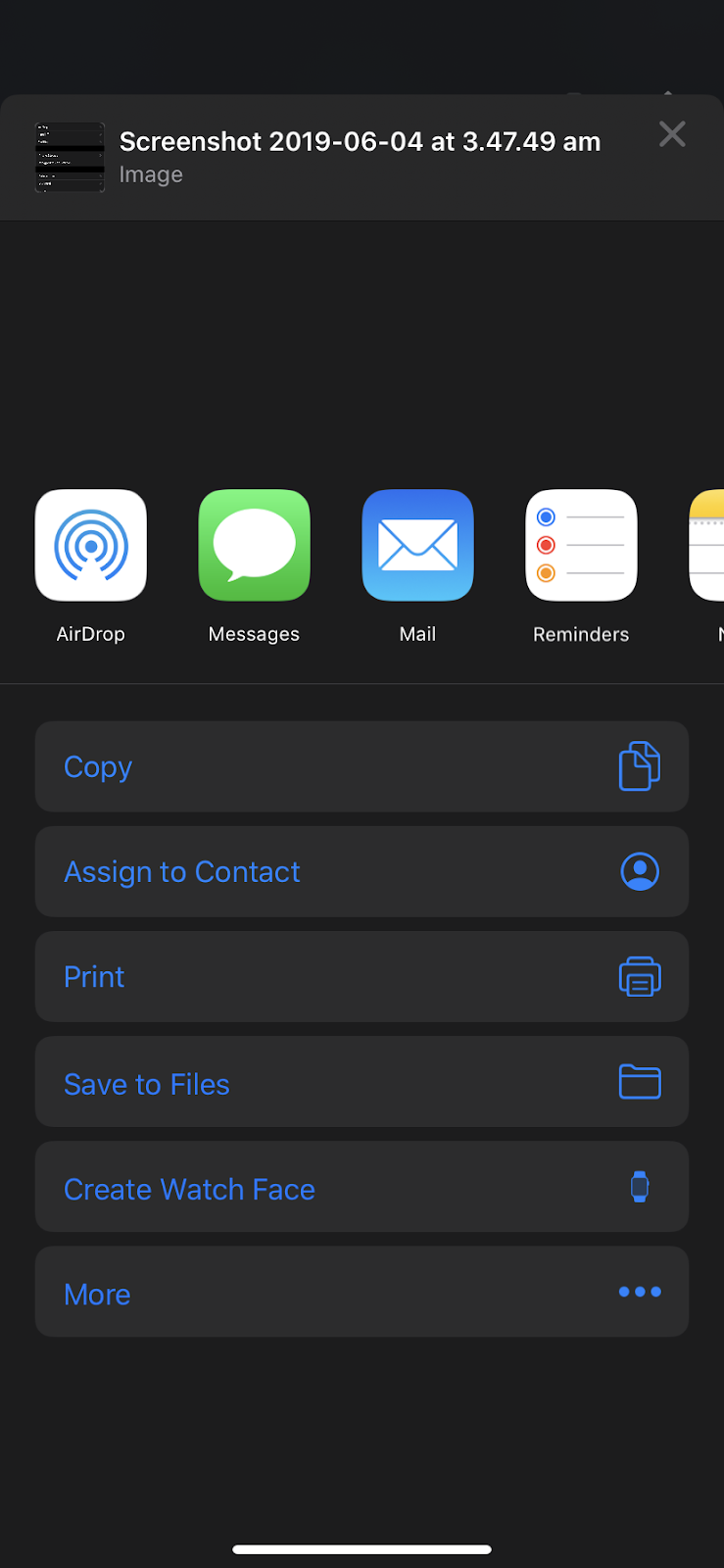
The new Share menu in iOS 13 with Dark mode enabled.


Widgets get a darker background shade to make reading content easier.


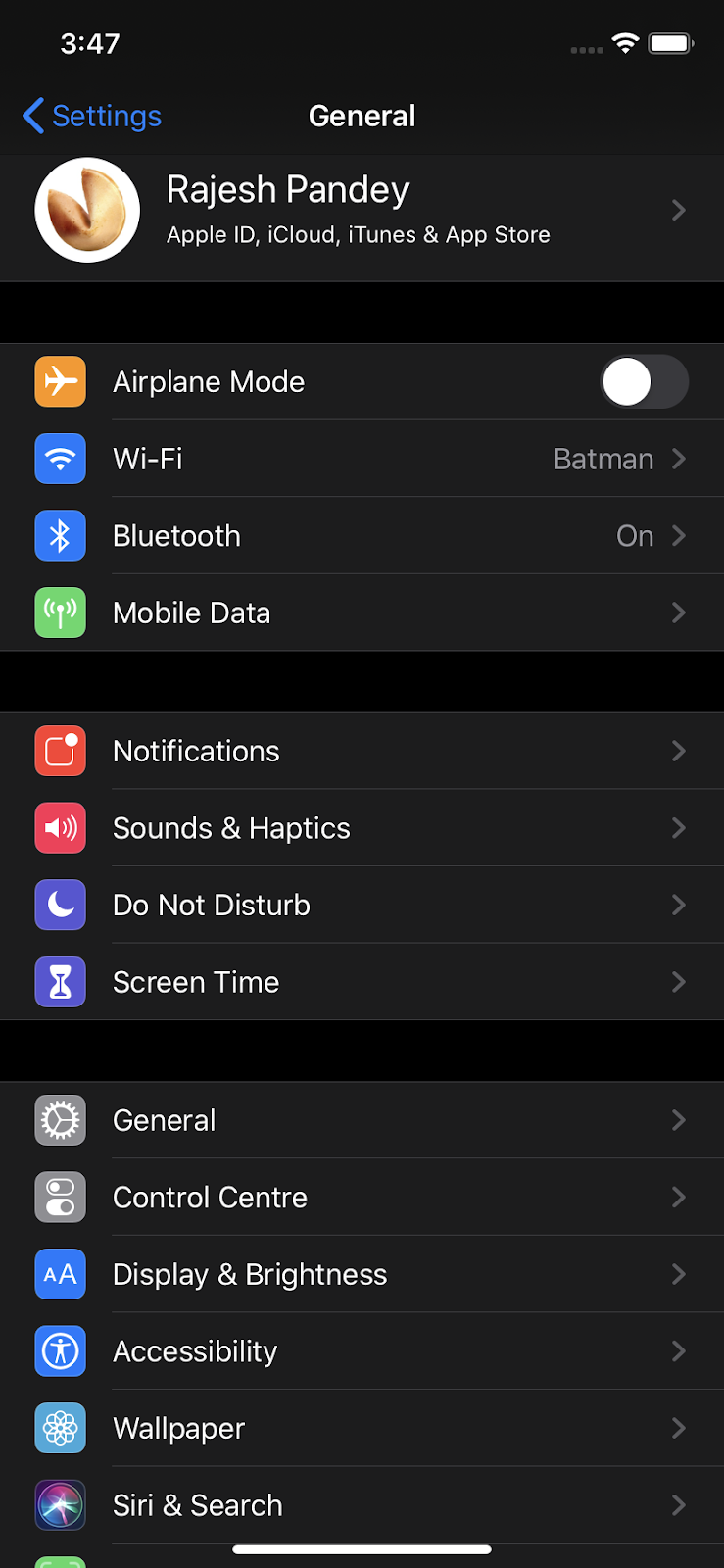
Settings app with Dark mode enabled and colorful icons looks eye-catching!


What are your thoughts about iOS 13’s Dark mode? Drop a comment and let us know!

Also Read:Free Online Movie Streaming Sites in 2019

Also Read:log out of Facebook Messenger

Also Read:Free Audio MP3 Cutter apps

Thursday, May 30, 2019

Apple Wins Patent for a Folding iPhone


Apple has filed another patent for a foldable phone, according to Patently Apple. The patent showcases a device that has, not one, but two folds. This comes after Apple winning the foldable battery patent and even the magnetic lock for a folding phone patent.

Apple has filed, a lot of different folding phone patents. And we mean it when we say a lot. None of them have been very detailed, though, and all they say is that Apple mightmake a foldable phone in the future. But that’s unfortunately about it.

Except, that the patent filings show us how Apple could implement a fold into an iPhone. The latest patent Apple has filled is a bit more ambitious than what we’ve seen from companies like Huawei and Samsung. The latest patent filing showcases a device that folds from both sides, making the unfolded display much larger compared to competitors.

It is unclear if this is a patent that would Apply only to the iPhone lineup, or if it could be implemented into the iPad lineup too. Maybe even the iPod, as Apple zombie-revived the device just last week.

As the patent is pretty undetailed, it doesn’t showcase what a potential foldable iDevice would look like. If you are interested in seeing an unofficial reimagining of that, a talented artist has made a concept for it.

For now, take this with a pinch of salt, as not everything Apple patents ends up as a product.


Sponsor ads:

Gihosoft RePicvid Free Photo Recovery Software provides a free photo recovery software for windows to help users recover the deleted or lost photo for free.

If you lost data after you updated to a new iPhone, you can always use Gihosoft iPhone Data Recovery to get the data back from the old iPhone or backup.You may also like: iphonerecovery.com

If you use android phones, please choose Gihosoft Android Data Recovery.With Gihosoft Android Data Recovery, no longer afraid of data loss!

iPhone Manager:Get the ultimate Gihosoft iPhone Manager. Free download for PC/Mac.

Friday, May 24, 2019

Vignette Updates Your iPhone Contact Photos Using Social Media


Vignette is a new single-purpose utility that solves a small, yet frustrating problem. If you’re like me, you don’t like seeing the gray circles when you’re calling someone or messaging a friend on iMessage. I usually add contact pictures manually. While that’s easy to do for your favorite contacts, it becomes a hassle for your whole contact book. Vignette fixes this problem by searching for photos from social media and linking them to your contacts.
How Vignette Finds and Updates Contact Photos

The premise is simple. While you might not have the latest photo of contact, their social media page probably does. It can be Facebook, Twitter, Instagram or even Gravatar. You can go to these pages, download the images individually and add them to a contact. But that can take hours.

Using Vignette you can do this in just a couple of minutes. Once you grant contact access permission, the app will analyze and cull through your entire contact book. Before you begin, the app suggests that you spend some time adding details like the person’s email address or Twitter link, this will make it easier for the app to find the updated photo.


Once the searching is done, you’ll see a list of contacts with the current photo, and the suggested photo from social media. You can check the photos that you do want to sync and uncheck the ones you don’t. Then just press the Update Contacts button to replace the contact photos. The app will update them behind the scenes, without polluting your Camera Roll.

So far, the app is free to use. But to actually replace the photos in the Contact Book, you’ll have to pay for a one-time in-app purchase of $4.99 to unlock the full app. Once you’ve paid, the app will update the contact book. You don’t need to worry about the privacy details as the app does not upload any of your contacts to the cloud and does not make money by sharing private information.

Download: Vignette (Free, $4.99 to unlock full app)
How Do You Manage Your Contact Book?

Do you use an app for sharing and syncing contacts? Do you always make sure that your contacts have updated profile pictures? Share with us in the comments below.

Also Read:Unbrick Your Bricked iPhone XS/XR/X/8/7 in 2019

Also Read:10 Best Reverse Image Search Engines and Apps for Android in 2019

Also Read:5 Ways to Fix If AOL Mail Is Not Working On Your iPhone

Also Read:Top 8 Best After Effects Alternative Software Free to Use on Windows/Mac/Linux 2019

Also Read:The Best 10 Websites to Download Bollywood Movies Online for Free in 2019

Also Read:SpyHuman Review and Its Top Best 10 Alternative in 2019

Also Read:Reddit NFL Streams – Watch NFL Live, Download, and Join Discussion

Also Read:Top 15 iTunes Alternatives for Windows, Mac and Linux

Also Read:How to Transfer Photos from Android to PC/Mac/Laptop

Also Read:Best Free Video to GIF Converter for Computer, iPhone, Android

Monday, May 6, 2019

How to Assign Relationships to Contacts for Siri Labels in iOS


In iOS, Apple includes a feature that allows you to establish relationships for different contacts, which makes getting in touch with the people close to you much more personable.


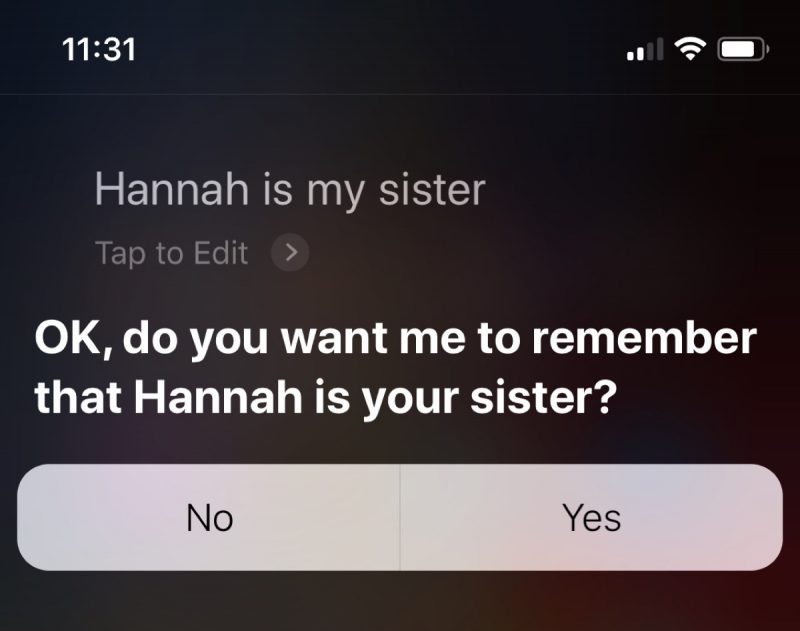
Once you've set it up, the Contacts app's relationships feature goes hand in hand with Siri, so rather than asking it to "Text Hannah," you can say "Text my sister" and the voice-activated assistant will know that Hannah is your sister.


The following steps show you how to create contact relationships using Siri or by manually adding them to the Contacts app. If you own additional Apple devices, the cool thing is that you only have to do this once and iCloud will sync the changes across all of them.


How to Create a Contact Relationship on iOS


On your iPhone or iPad, hold down the Home button (or the Side button if your iOS device doesn't have one), or say "Hey Siri" to invoke the assistant handsfree.


Say the name of the contact and your relationship with them, such as "Hannah is my sister." (If you have two sisters, you can help Siri distinguish them by saying "Hannah is my older sister," for example.)


When Siri asks if you want it to remember the relationship, answer "Yes" or tap the Yes button that appears.


Add a Relationship Manually in the Contacts App

If you want, you can manually add relationships in the Contacts app instead. Here's how.


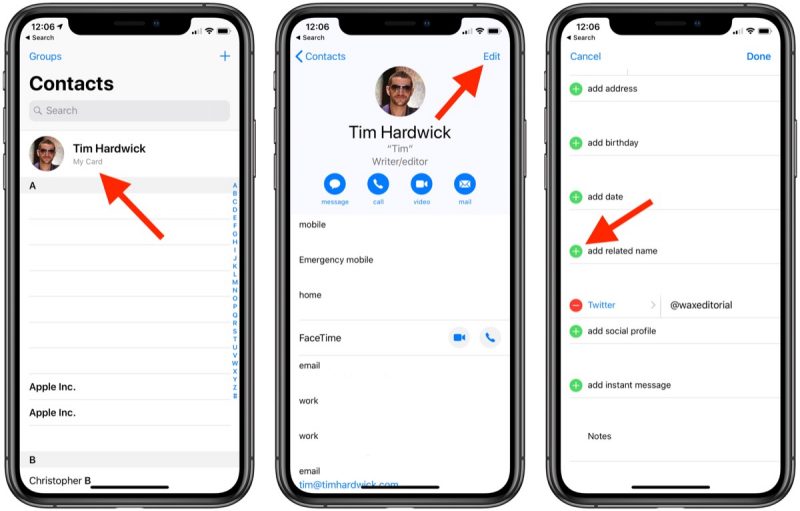
Launch the Contacts app on your iPhone or iPad.


Tap your own contact card.


Tap Edit in the top-right corner of the screen.


Tap the plus (+) button next to add related name.


Enter the name of the contact you want to establish a relationship with.


Tap the relation field next to the contact's name and select the relationship you want to establish with them. (Tap Custom to define a relationship not offered in the list.)


Tap Done.

Remember, you can establish as many relationships as you want using the above methods, so long as the person exists in your contacts.Note Tips: Top 3 Alternative Sites to TamilDbox 2019

Also Read:8 Best Chess Apps for iPhone & iPad 2019

Also Read:Recover Your Forgotten Apple ID and Password

Also Read:Top 5 Best Similar Sites to Kickass Torrents 2019

Also Read:10 Best Free Music Download Sites That Are Totally Legal

Also Read:12 Best Free Instagram Followers Apps for Android and iPhone in 2019

Also Read:How to Play Android Games and Run Android Apps on PC or Mac

Also Read:Top 5 Best Free File Encryption Software for Computer in 2019

Sponsor ads:

Chuwiには、カスタマイズされたラップトップ、タブレットPC、妥協のない品質、安定性、サポート、パフォーマンスを備えたミニノート pcエクスペリエンスの世界有数のテクノロジーパートナーになることをミッションがあります。


Gihosoft RePicvid Free Photo Recovery Software provides a free photo recovery software for windows to help users recover the deleted or lost photo for free.

If you lost data after you updated to a new iPhone, you can always use Gihosoft iPhone Data Recovery to get the data back from the old iPhone or backup.You may also like: iphonerecovery.com

If you use android phones, please choose Gihosoft Android Data Recovery.With Gihosoft Android Data Recovery, no longer afraid of data loss!

iPhone Manager:Get the ultimate Gihosoft iPhone Manager. Free download for PC/Mac.

Sunday, May 5, 2019

Kuo: iPhone 11 to Feature Redesigned Antenna Tech for Improved Indoor Navigation


Ming-Chi Kuo is out with a new report today in which he claims that Apple will be making some massive changes to the antenna structure and arrangement in 2019 iPhones. The analyst had made similar claims last year as well.

Apple is making the change due to a change in technology and suppliers. The company will be using a new modified-Pl antenna structure which will offer cost and production improvements. Apple uses LCP antenna technology on its 2018 iPhone lineup which has yield issues and also causes problems during high-frequency transmission.Leer másG2a sitio

Due to ultra-wideband upgrades, the production cost for antennas will be 10-20 percent higher for Apple in 2019. The upgrades, however, will lead to improved indoor navigation performance on 2019 iPhones.

The new complicated antenna structure on the 2019 iPhones will involve Apple using one single MPI and LCP unit for the top antenna and three MPI units for the bottom antennas. The switch will mean that Career will no longer supply antenna components to Apple in 2019. It will also not be a part of Apple’s supply chain for the 2019 iPad and Apple Watch production.

The switch will only be temporary in nature as Apple will go back to LCP antenna technology in 2020 when it launches a 5G iPhone.

In the end, Kuo notes that iPhone shipments will remain flat year-over-year in H2 2019. With smartphone market peaking, this should not be surprising since 2019 iPhones are not going to pack any massive new improvements. They are going to feature triple cameras at the rear, improved front camera, bigger batteries, and more.Note Tips: Top 3 Alternative Sites to TamilDbox 2019


Our Take

With the 2018 iPhone XS and iPhone XS Max, Apple finally made the switch to a Gigabit LTE modem on its iPhone lineup. It remains to be seen if the switch to a PI antenna tech on the 2019 iPhones will lead to faster LTE performance or not.Sponsor ads:

Gihosoft RePicvid Free Photo Recovery Software provides a free photo recovery software for windows to help users recover the deleted or lost photo for free.

If you lost data after you updated to a new iPhone, you can always use Gihosoft iPhone Data Recovery to get the data back from the old iPhone or backup.You may also like: iphonerecovery.com
If you use android phones, please choose Gihosoft Android Data Recovery.With Gihosoft Android Data Recovery, no longer afraid of data loss!

iPhone Manager:Get the ultimate Gihosoft iPhone Manager. Free download for PC/Mac.
[Via AppleInsider]